Quick Links
- What Is a Podcast RSS Feed?
- How Does a Podcast RSS Feed Actually Work?
- Do You Need an RSS Feed for Your Podcast?
- What Does a Podcast RSS Feed Contain?
- Podcast RSS Feed Requirements You Should Know
- Where Can You Find Your Podcast RSS Feed?
- How Do You Submit a Podcast RSS Feed?
- Where Should You Distribute Your Podcast RSS Feed?
- How Podcast RSS Works With YouTube and YouTube Music
- What Is a Private Podcast RSS Feed?
- Podcasting 2.0: RSS Can Do More Than It Used To
- Self-Hosted Podcast? You Can Create Your Own RSS Feed
- Example of a Self-Hosted Podcast RSS Feed
- How to Test a Podcast RSS Feed
- Podcast RSS Feed Not Working? Here’s What to Check
- Changing Podcast Hosts? Don’t Simply Replace the Feed
- Frequently Asked Questions [FAQs]
- Wrapping Up: Your Podcast RSS Feed Is More Important Than It Looks
A podcast RSS feed sounds like something only the technical side of podcasting should care about, but it is actually one of the most important things behind how a normal podcast reaches listeners.
You upload an episode once on your podcast host, and a little later, the same episode starts appearing on Apple Podcasts, Spotify, Pocket Casts, Overcast, and several other podcast apps. You don’t upload the same MP3 ten different times, and you don’t have to update the title or description separately on every app whenever you make a small change.
For most podcasts, the RSS feed is what makes this possible.
It is basically the constantly updated file sitting between your podcast host and the apps that read your show. It carries your podcast name, description, artwork, episodes, audio files, publication dates, categories, and other information that podcast platforms need.
The older version of this guide also mentioned Google Podcasts, Stitcher, and Apple iTunes. Things have changed quite a bit since then. Google Podcasts and Stitcher are gone, Apple iTunes is now simply Apple Podcasts in this context, YouTube and YouTube Music have become much more important to podcast distribution, and podcast RSS itself has also gained newer capabilities through projects such as Podcasting 2.0.
So, let’s understand what a podcast RSS feed actually is, how it works, where you can find yours, what information belongs inside one, and what to check when the feed suddenly stops behaving the way it should.
YOUR AUDIENCE IS YAWNING
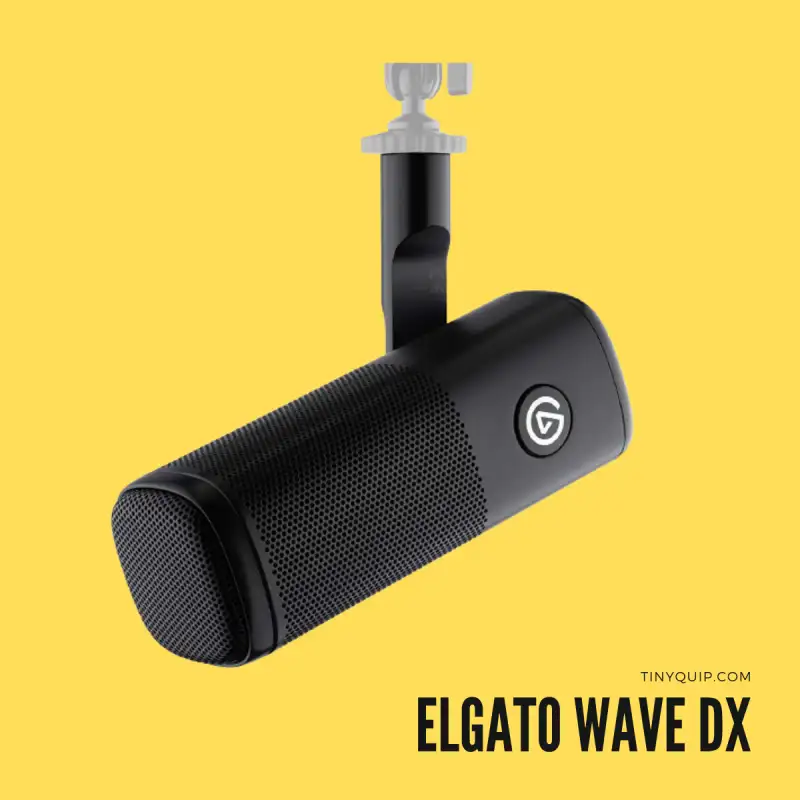
There are two factors that can make your audience sleepy while listening to your podcast. One is a boring script, and the second is poor audio.
Here are my favorite 10 best microphones for podcasters that will make you sound-sick professional. And also budget-friendly for starters and professionals.
What Is a Podcast RSS Feed?
RSS stands for Really Simple Syndication. It is a web-feed format used to publish information in a structured way so another application can keep checking that source for new or changed content.
In podcasting, the easiest way to understand it is this:
Your podcast host stores the show and its audio files. Your RSS feed tells podcast apps what exists and where to find it.
Suppose you publish a new episode called How I Started My First Business. Your podcast host adds that episode to your RSS feed along with information such as its title, description, publication date, audio-file URL, duration, and episode identifier.
Apps that already know your feed periodically check it again, notice the new episode, read its information, and make it available to listeners.
That is why you don’t normally upload every audio episode manually to every traditional podcast directory.
Your RSS feed becomes the source they follow.
And besides good distribution, there are two other things that can make a huge difference once somebody actually presses play: having a decent structure for the episode and recording clean audio. I already have a guide on writing a podcast script, along with my picks for the best microphones for podcasting if you are still building that side of the setup.
How Does a Podcast RSS Feed Actually Work?
There are broadly three parts involved in conventional podcast distribution.
First, you have your podcast hosting platform. This may be Buzzsprout, Transistor, Captivate, Libsyn, Podbean, Spotify for Creators, or another host. This is where you create the show and publish your episodes.
Then comes the RSS feed. Your host normally creates and maintains this for you. It is an XML file containing information about the overall podcast and every episode you have published.
Finally, you have the podcast apps and directories that read the feed and show your content to listeners.
So the flow looks something like this:
You publish an episode → your podcast host updates the RSS feed → podcast platforms check the RSS feed → the new episode appears for listeners.
The RSS feed can include your podcast title, description, language, author, category, podcast cover art, website address, explicit-content information, and other show-level details.
Each episode then has its own information, including its title, description, publication date, audio file, unique identifier, and other optional metadata.
Once a podcast directory has accepted your feed, you generally don’t need to submit the feed again for every episode. You publish through your host, the feed changes, and platforms pick up that change.
There can still be a delay. Podcast directories don’t all check feeds at exactly the same time, so changing an episode title at 11:00 AM does not mean every podcast app will display the new title at 11:01 AM.
That is normal.
Do You Need an RSS Feed for Your Podcast?
For a conventional podcast that you want available across the open podcast ecosystem, I would treat the RSS feed as essential.
There are exceptions now because podcasting has expanded beyond the old RSS-only model. You can, for example, create video content directly on YouTube, and some platforms have their own native publishing systems.
But if the plan is to publish an audio podcast and make it available across Apple Podcasts, Spotify, Pocket Casts, Overcast, and other podcast apps, RSS remains the common distribution layer.
Even Spotify for Creators creates an RSS feed for shows it hosts once the first episode has been published. If you want to distribute a Spotify-hosted show beyond Spotify, you currently need to enable that RSS feed and submit the show to other listening platforms. Spotify also warns that enabling the feed can expose the email address included in it publicly.
So I would slightly correct something from the old version of this guide.
You don’t need an RSS feed because “every podcast must technically have one under every circumstance.” You need one because RSS is what makes a podcast portable across the wider podcast ecosystem.
And portability matters.
If you ever change hosts, want listeners to use a different podcast app, or want your show distributed beyond one company’s platform, the RSS feed becomes extremely valuable.
What Does a Podcast RSS Feed Contain?
If you open a podcast RSS URL directly in your browser, you may see what looks like a wall of XML code. That is perfectly normal because the file is mainly written for software to read rather than for you to browse like a normal webpage.
At the show level, a podcast RSS feed commonly contains information such as:
- podcast title;
- description;
- language;
- author or creator;
- website;
- podcast category;
- explicit-content information;
- show artwork;
- copyright information;
- owner/contact information where used.
For every episode, it can then carry:
- episode title;
- description or show notes;
- publication date;
- audio-file location;
- audio MIME type;
- file size;
- duration;
- globally unique identifier or GUID;
- episode and season information;
- episode artwork where supplied.
Your podcast cover art matters here because apps use artwork supplied through your podcast metadata when presenting the show. If you don’t want to design it from scratch, I also have a separate list of apps for creating podcast cover art.
Different podcast apps can support additional tags beyond the basic RSS specification, so your feed can contain considerably more information than this.
Podcast RSS Feed Requirements You Should Know
If you use a mainstream podcast host, you normally don’t need to manually think about XML syntax because the host builds the feed for you.
Still, knowing the basic requirements becomes useful when something breaks.
Apple Podcasts remains one of the useful standards to check because its current RSS requirements are quite specific. An RSS-submitted podcast needs a publicly accessible RSS 2.0 feed, required metadata, at least one episode, and artwork. Each episode needs its own enclosure information and a globally unique identifier that does not change. Apple also requires servers to support HTTP HEAD and byte-range requests so artwork and episode media can be accessed correctly.
That unique identifier deserves particular attention.
Don’t Casually Change an Episode’s GUID
A GUID is basically the permanent identity of an episode inside the feed.
You can change an episode title.
You can change its description.
In some circumstances, you can even replace the media file.
But the episode’s GUID should remain stable.
If a podcast host changes GUIDs during a migration, platforms may interpret the episodes as completely new episodes and create duplicates. Apple specifically warns about this when moving podcast hosts.
So if you ever migrate a podcast, don’t only check whether the episode titles and artwork arrived correctly. Make sure the migration preserves episode GUIDs too.
Your Episode Needs a Valid Enclosure
The <enclosure> element tells podcast apps where the actual media file lives.
Apple currently expects each episode to have a unique enclosure containing a URL, file length, and media type. Duplicate enclosure URLs can be ignored.
The older Tiny Quip guide described the media file specifically as MP3. MP3 is certainly common, but it isn’t the only possibility. Apple currently accepts MP3 and AAC for audio delivered through RSS.
Dates Need the Right Format
Publication dates inside RSS are not simply written however you like.
For example, Apple expects dates that conform to RFC 2822, including the date, 24-hour time, and time-zone information.
Again, your host normally handles this.
But when you hand-build a feed, these little details suddenly become your responsibility.
Where Can You Find Your Podcast RSS Feed?
If you use a dedicated podcast hosting platform, the RSS feed is normally available somewhere inside the show settings, distribution settings, or podcast information page.
The exact location differs between hosts.
On Spotify for Creators, for example, a Spotify-hosted show’s feed currently appears after you publish the first episode under Settings → Availability → RSS Distribution. Spotify automatically makes Spotify-hosted shows available on Spotify, but the feed needs to be enabled if you want to use it for distribution elsewhere.
With another podcast host, search the dashboard for terms such as:
RSS feed
Distribution
Podcast feed
Feed URL
Directories
Your podcast RSS URL will usually look like a normal web address. Copy that URL rather than copying the XML content displayed inside it.
If you cannot find the feed, the hosting provider’s documentation or support team should be able to point you toward it.
How Do You Submit a Podcast RSS Feed?
Traditionally, when you launch a podcast, you take the RSS URL produced by your host and submit it to the important directories where you want the show available.
The exact process differs between platforms, but it generally looks like this:
- Create or sign in to the creator account for the podcast platform.
- Choose the option to add or submit a show.
- Enter the podcast RSS feed.
- Verify ownership if requested.
- Let the platform validate the feed.
- Complete any additional information required by that platform.
- Submit the show for publication or review.
Once accepted, you normally don’t repeat this for each new episode.
The directory continues reading the same feed.
A few services may also discover or scrape public feeds independently, so you can sometimes find your podcast listed somewhere you never manually submitted it. Spotify specifically warns creators that public RSS feeds can be scraped by third-party podcast aggregators.
Where Should You Distribute Your Podcast RSS Feed?
Here is another piece of the original article I would completely change.
I previously recommended keeping your podcast on no more than three platforms because managing the audience and analytics becomes more complicated. Looking at how podcast distribution works today, I don’t think that advice makes sense.
The whole benefit of RSS is that you don’t need to maintain ten separate copies of your podcast.
If an additional reputable podcast directory can make your existing RSS show available to more listeners without creating a meaningful workload, there usually isn’t a good reason to restrict yourself to an arbitrary number such as three.
Some of the destinations worth considering include:
- Apple Podcasts
- Spotify
- YouTube and YouTube Music
- Pocket Casts
- Overcast
- Podcast Addict
- Amazon Music
- iHeartRadio
- Castbox and other relevant podcast apps
You don’t necessarily need to obsess over every tiny podcast directory on the internet, but I would make the show available on the major services your audience could reasonably use.
And two platforms from the original list should disappear completely: Google Podcasts and Stitcher are no longer active podcast destinations.
How Podcast RSS Works With YouTube and YouTube Music
This is one of the biggest additions needed since the original article was written.
YouTube now allows eligible audio-first podcasters to submit an RSS feed to YouTube. When you do this, YouTube can create a static-image video from your show artwork for the episodes you select and upload those episodes to your YouTube channel. Future episodes added to the RSS feed can then be uploaded automatically.
There is one important distinction here: submitting a podcast RSS feed to YouTube does not turn YouTube into your distributor for Apple, Spotify, or other apps. YouTube explicitly says its RSS ingestion only makes the podcast available through YouTube and YouTube Music.
Listeners can also manually add certain missing podcasts to their own YouTube Music library using an RSS URL. These privately added feeds have some limitations compared with native YouTube podcasts, including no audio/video switching, likes, sharing, channel page, or captions.
So YouTube now understands RSS, but it uses RSS somewhat differently from a traditional podcast directory.
What Is a Private Podcast RSS Feed?
Not every podcast feed needs to be publicly searchable.
Paid podcasts, employee podcasts, courses, memberships, and other restricted shows can use private RSS feeds.
Instead of everybody sharing one public feed URL, a listener may receive a unique RSS URL associated with their subscription. They can then add that URL to a podcast app that supports private feeds.
This lets the creator control access while the listener can still use a familiar podcast player.
The important thing is not to publish a private RSS URL publicly. Depending on the provider, that URL may effectively act like a password to the subscription.
Spotify, for example, currently provides private RSS feeds for certain paid podcasts and allows listeners to paste them into compatible podcast apps.
Podcasting 2.0: RSS Can Do More Than It Used To
Traditional podcast RSS is still doing the fundamental job it has done for years, but newer podcast apps and hosts can also support the Podcasting 2.0 namespace.
This adds optional metadata without throwing away RSS itself.
The current Podcasting 2.0 namespace includes tags for things such as transcripts, chapters, people, locations, funding, alternative media enclosures, live items, social interactions, and several other features.
For example, an episode could include a transcript through the <podcast:transcript> element. Podcasting 2.0 supports linking transcript files such as VTT or SRT so compatible apps can display timed captions or searchable transcripts.
You don’t need to manually add all of this simply because it exists.
But when comparing podcast hosting platforms, it is worth looking at what modern RSS features each host supports because your feed can now contain much richer information than a title and an MP3 file.
Self-Hosted Podcast? You Can Create Your Own RSS Feed
Most people reading this should probably use a podcast host and let it manage the RSS feed.
But you can host the feed yourself.
Self-hosting gives you more control, but it also means you become responsible for keeping the XML valid, serving media reliably, preserving GUIDs, supporting the HTTP behavior podcast apps expect, maintaining redirects, updating the feed every time you publish, and keeping the server available.
That’s a lot more responsibility than simply creating an XML file.
If your podcast website uses WordPress, plugins can handle much of this work for you. Two long-running options from the original Tiny Quip guide are still active: Seriously Simple Podcasting and PowerPress by Blubrry.
If you already use a managed WordPress host, you can keep the podcast website there too. The original guide used WordPress hosting on Kinsta as one example, although your podcast media delivery and feed setup still need to meet the requirements of the directories you submit to.
If you decide to build the XML yourself instead, I would only recommend it if you are comfortable maintaining web servers and XML. You can use any proper plain-text or code editor; the important part isn’t which editor you choose, but whether the resulting feed stays valid.
Example of a Self-Hosted Podcast RSS Feed
Here is a simplified modern example:
<?xml version="1.0" encoding="UTF-8"?> <rss version="2.0" xmlns:itunes="http://www.itunes.com/dtds/podcast-1.0.dtd" xmlns:content="http://purl.org/rss/1.0/modules/content/" xmlns:podcast="https://podcastindex.org/namespace/1.0">

<channel>
<title>Tiny Quip Podcast</title>
<link>https://example.com/podcast</link>
<description>A podcast about making technology easier to understand.</description>
<language>en-IN</language>

<itunes:author>Ashutosh Jain</itunes:author>
<itunes:image href="https://example.com/podcast-cover.jpg" /> <itunes:explicit>false</itunes:explicit>
<itunes:category text="Technology" />

<item>
<title>Episode 1: Starting a Podcast Without Overcomplicating It</title>

<description> In this episode, we look at what you actually need to start a podcast. </description>

<pubDate>Tue, 22 Sep 2026 10:00:00 +0530</pubDate>

<guid isPermaLink="false">tinyquip-episode-001</guid>

<enclosure
url="https://example.com/audio/episode-001.mp3"
length="50000000"
type="audio/mpeg" />

<itunes:duration>00:25:00</itunes:duration>

<podcast:transcript url="https://example.com/transcripts/episode-001.vtt" type="text/vtt" />
</item>

</channel>
</rss>
This isn’t meant to be copied as your complete production feed because your requirements may differ, but it shows the basic relationship.
The <channel> contains information about the overall podcast.
Each <item> represents an episode.
The <enclosure> points towards the media file.
The <guid> permanently identifies that episode.
And the optional Podcasting 2.0 transcript tag points compatible apps toward a transcript file.
If you maintain this yourself, every time you publish an episode, you add another properly structured <item> and upload the updated feed.
This is exactly why I would let a podcast host or WordPress podcast plugin do the repetitive part unless I had a specific reason to manage it manually.
How to Test a Podcast RSS Feed
Before submitting a new feed everywhere, test it.
Apple currently recommends testing an RSS feed by adding it directly inside the Apple Podcasts app using Add a Show by URL. Doing this lets you see how the artwork and metadata appear and whether episodes can actually stream or download without publishing that feed into the Apple Podcasts directory.
You can then validate the feed during the directory submission process or use an RSS/podcast feed validator to check the XML.
When testing, I would look for:
- correct podcast title and description;
- correct cover art;
- at least one visible episode;
- working episode playback;
- correct episode dates;
- no duplicate episodes;
- correct category and explicit-content information;
- stable GUIDs;
- media URLs that load publicly;
- no XML parsing errors.
If all of those are working, you are already past most of the common RSS problems.
Podcast RSS Feed Not Working? Here’s What to Check
When something goes wrong, don’t immediately rebuild the entire feed.
Start with the simplest checks.
| Problem | What I Would Check First |
|---|---|
| Feed won’t open | Check the complete RSS URL, HTTPS, server availability, redirects, and whether the feed is accidentally password protected. |
| Platform can’t read the feed | Validate the XML and check required RSS/iTunes tags, malformed characters, and case-sensitive tags. |
| Episodes don’t appear | Check the episode <item>, enclosure URL, publication date, and unique GUID. |
| Episode won’t play | Check whether the enclosure/media URL is publicly reachable and supports the server behavior required by podcast apps. |
| Artwork is missing | Check the image URL, file type, dimensions, accessibility, and artwork tag. |
| Duplicate episodes appear | Check whether the episode GUIDs changed, especially after a hosting migration. |
| Changes aren’t showing yet | Give podcast apps some time to fetch the updated feed before changing things again. |
| Ownership verification doesn’t arrive | Check which email address is exposed in the feed and whether you still have access to that inbox. |
| Problems started after changing hosts | Check the 301 redirect, new feed URL, GUID preservation, and directory settings. |
Apple’s own validation errors cover many of the same problems, including incomplete feed URLs, connection failures, inaccessible episode files, unsupported byte-range requests, missing enclosures, malformed XML, and missing categories.
1. Open the RSS Feed Yourself
Paste the feed URL into a browser.
You don’t need to understand all of the XML. You are initially checking whether the URL actually loads rather than returning an error, login screen, or dead page.
A public podcast feed submitted to Apple, for example, must be publicly addressable and cannot be password-protected.
2. Check the Episode Media URL
An RSS feed can load perfectly while its audio file is broken.
Open the enclosure URL for the affected episode and make sure the media itself is accessible.
If the podcast directory cannot download the audio, fixing the XML title will not solve anything.
3. Check the GUID Before Fixing Duplicates
If the issue is duplicate episodes, pay very close attention to GUIDs.
Do not start deleting and re-uploading everything immediately.
If a migration or feed generator changed the GUIDs, apps may have interpreted existing episodes as new content. Preserving the old GUIDs is usually part of solving the underlying problem.
4. Validate the Feed
A malformed XML character, missing enclosure, wrong category, inaccessible server, or incorrectly formatted date can cause validation errors.
Apple Podcasts Connect performs feed validation when you submit a show, and Apple also documents its common validation errors.
If you maintain the feed yourself, validation should become part of your publishing process rather than something you do only after the podcast breaks.
5. Give Apps Time to Refresh
If you changed an episode title fifteen minutes ago and one podcast app still shows the old title, that doesn’t necessarily mean the feed is broken.
Different services refresh RSS feeds on different schedules, and cached artwork or metadata can take longer to update.
Check whether the RSS feed itself contains the new information first.
If it does, the remaining delay may simply be on the podcast application’s side.
Changing Podcast Hosts? Don’t Simply Replace the Feed
This is probably the highest-risk RSS operation most ordinary podcasters will eventually perform.
Suppose your podcast currently lives on one host and you move to another. The new host creates a new RSS URL.
Do not simply replace links everywhere and immediately delete the old feed.
A proper migration normally uses an HTTP 301 redirect from the old feed to the new one so podcast apps and existing listeners can follow the move.
Apple recommends having the old server return a 301 redirect and, for self-hosted feeds, using <itunes:new-feed-url>in the new feed. Apple also currently recommends maintaining the redirect and new-feed tag for at least four weeks and preserving all original episode GUIDs.
Spotify has a separate setting for externally hosted shows where you can update the show’s RSS feed URL and hosting provider inside Spotify for Creators after changing hosts.
This is why I would always use the migration feature provided by the old and new podcast hosts instead of trying to manually improvise a move.
Frequently Asked Questions [FAQs]
A podcast RSS feed is an XML-based web feed containing information about a podcast and its episodes. Podcast apps can read the feed to discover new episodes and updates without the creator manually uploading every episode separately to every compatible directory.
If you use a podcast hosting platform, look inside the show’s settings, distribution, availability, or RSS section. The location differs between hosts. Spotify-hosted shows, for example, currently show the feed under Settings → Availability → RSS Distribution after the first episode has been published.
Not literally every piece of content described as a podcast needs one anymore because some platforms support native publishing. But if you want a conventional podcast distributed across multiple podcast apps and directories, an RSS feed remains the standard way to make the show portable.
The RSS file itself does not inherently cost anything. Most podcast hosting platforms generate it as part of the hosting service, while self-hosted podcasters can technically create one themselves. Your actual costs usually come from podcast hosting, media storage, bandwidth, website hosting, or other tools rather than from “buying an RSS feed.”
No. Your podcast host stores or manages the show and media, while the RSS feed is the structured document that tells compatible podcast apps what episodes exist and where the media can be found.
Yes, particularly when changing hosting providers, but it needs to be handled carefully. A proper migration usually involves redirecting the old feed to the new feed and preserving episode GUIDs so subscribers and podcast apps continue following the same show rather than creating duplicates.
Yes, if their podcast app supports adding shows by URL. Apple Podcasts supports this, and YouTube Music also allows listeners to add certain podcasts to their personal libraries using an RSS feed URL.
The underlying idea is similar, but access is restricted. Private feeds are commonly used for paid subscriptions, memberships, employee podcasts, or other content that shouldn’t be available publicly.
RSS can carry video media, and modern podcast distribution is becoming more complicated as platforms add their own video systems. Podcasting 2.0 also includes alternate-enclosure functionality for additional media types. However, video behavior differs substantially between Apple, Spotify, YouTube, and individual hosts, so I wouldn’t assume that putting one video file in a feed will make it behave identically everywhere.
Wrapping Up: Your Podcast RSS Feed Is More Important Than It Looks
Most podcasters will never need to manually edit a line of RSS XML, and that is probably a good thing. A reliable podcast hosting platform should handle most of the technical work while you concentrate on recording and publishing the show.
But understanding the feed itself is still useful.
It explains why one upload can appear across several podcast apps, why changing hosts needs to be handled carefully, why an episode can suddenly duplicate after a bad migration, why artwork may take time to update, and why one broken piece of metadata can affect several platforms at once.
If you’re starting from scratch, let your podcast host create and maintain the feed. Make sure your metadata and podcast cover art are correct, test the feed before submitting it widely, and don’t casually change feed URLs or episode GUIDs after launch.
Self-hosting is absolutely possible, especially on WordPress with tools such as Seriously Simple Podcasting or PowerPress, but I would choose it because I specifically want the extra control, not because creating the XML itself happens to be free.
Once your RSS feed works properly, it should largely disappear into the background, quietly carrying each new episode from your host to the apps your listeners prefer.
And that is exactly how it should be.
Before You Leave
Get Our Prime Content Delivered to your Inbox for Free!! Join the Ever-Growing Community… Right Now.
Give this article a quick share,