
Quick Links
- How Does a Podcast Episode Appear on Spotify?
- How to Delete a Podcast Episode if Spotify for Creators Hosts Your Show
- How to Remove a Spotify Episode if Another Company Hosts Your Podcast
- Delete or Unpublish: Which Should You Choose?
- Should You Delete an Episode Just Because It Is Outdated?
- What if Only Part of the Episode Is Wrong?
- What if You Want the Episode Available Only to Paying Listeners?
- What Happens to the RSS Feed When You Delete an Episode?
- I Deleted an Episode, but It Still Appears on Spotify
- What if the Deleted Episode Still Appears on Other Podcast Apps?
- What Happens if You Delete All Podcast Episodes From Spotify?
- Will You Lose Analytics After Deleting an Episode?
- Does Removing an Episode Also Remove Downloads From Listeners’ Devices?
- Should You Remove an Episode or the Entire Podcast?
- Frequently Asked Questions [FAQs]
- Wrapping Up: Remove the Episode From the Right Place
There are plenty of reasons you may want to remove an old podcast episode from Spotify. Maybe the information inside it is no longer accurate, you uploaded the wrong version, something in the episode no longer represents the show, or you simply don’t want that particular conversation to remain public.
I would, however, think twice before deleting an episode only because it has become old.
An older episode isn’t automatically a bad episode. It may still bring listeners into the show through search, have useful links pointing toward it, or simply document how your opinions and content evolved over time. If the problem is only a small factual mistake or outdated section, deleting the entire episode can sometimes be a much bigger response than the situation needs.
That said, there are cases where removing it is clearly the better choice, and Spotify makes the process fairly simple once you know where your podcast is actually hosted.
The important distinction today is this: if Spotify for Creators hosts your podcast, you remove the episode directly through Spotify. If your podcast is hosted somewhere else, such as Buzzsprout, Transistor, Captivate, Libsyn, Podbean, or another host, you generally need to remove the episode from that hosting platform so it disappears from the RSS feed Spotify reads. (support.spotify.com)
So, before deleting anything, let’s understand which situation applies to you.
Your Audience is Yawning
There are two factors that can make your audience sleepy while listening to your podcast. One is a boring script, and the second is poor audio.
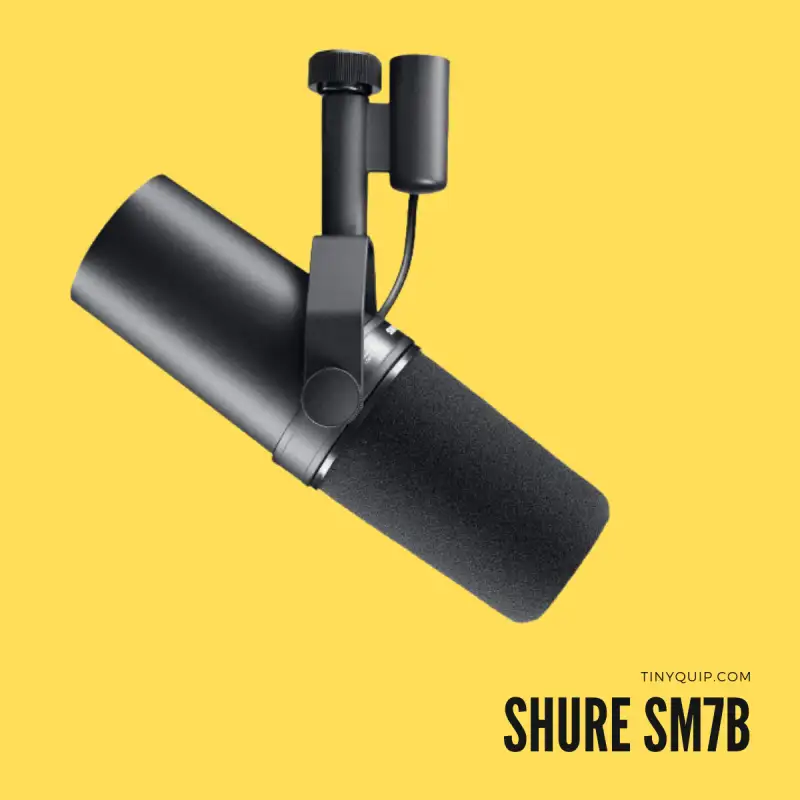
Here are my favorite 10 best microphones for podcasters that will make you sound-sick professional. And also budget-friendly for starters and professionals.
How Does a Podcast Episode Appear on Spotify?
For most externally hosted podcasts, Spotify does not receive every episode because you manually upload the audio to Spotify one by one.
Instead, Spotify reads your podcast RSS feed.
That feed contains information such as your podcast title, description, artwork, episode titles, publication dates, and links to the audio files. When you publish or remove an episode through your hosting platform, the RSS feed changes, and Spotify eventually reads the new version.
If RSS sounds confusing, I have a separate guide explaining exactly how a podcast RSS feed works, what it contains, and what to check when something stops updating properly.
Spotify-hosted shows work slightly differently because Spotify for Creators itself is the hosting platform. In that situation, the platform manages the episode and the RSS feed behind it.
This is why the first question should always be:
Who hosts my podcast?
If the answer is Spotify, use Spotify for Creators.
If the answer is another podcast host, start there.
How to Delete a Podcast Episode if Spotify for Creators Hosts Your Show
If Spotify hosts your podcast, you can delete the episode directly from Spotify for Creators.
On the web:
- Sign in to Spotify for Creators.
- Open Episodes.
- Find the episode or video you want to remove.
- Click the three-dot menu beside it.
- Select Delete episode.
On the Spotify for Creators mobile app:
- Tap Podcast at the bottom.
- Open the episode you want to remove.
- Tap the three dots in the top-right corner.
- Choose Delete.
Spotify says the change should normally appear on Spotify within one hour. If your Spotify-hosted show is also distributed to other podcast platforms, Spotify says those changes should generally appear there within 24 hours. (support.spotify.com)
That is quite a bit quicker than the 24–48 hour timeframe mentioned in the older version of this guide.
I would still avoid repeatedly deleting, republishing, or changing the episode while waiting. Give the platforms a reasonable amount of time to refresh first.
How to Remove a Spotify Episode if Another Company Hosts Your Podcast
This is where a lot of podcasters understandably get confused.
You may manage your show inside Spotify for Creators and still not actually host it with Spotify.
If your podcast lives on Buzzsprout, Podbean, Libsyn, Transistor, Captivate, or another platform, Spotify specifically tells creators to remove the episode through their podcast host or remove it from the RSS feed there. (support.spotify.com)
So the process becomes:
- Log in to your podcast hosting platform.
- Open the podcast.
- Find the episode you want to remove.
- Delete or unpublish it using the host’s controls.
- Confirm that the episode has disappeared from the RSS feed.
- Wait for Spotify to fetch the updated feed.
You generally don’t need to manually delete the same RSS episode inside Spotify after doing this.
Spotify is following the feed your host provides. Once that feed stops listing the episode, Spotify should eventually update its own version too.
If you aren’t sure where your RSS feed comes from or what information is inside it, this is exactly where the podcast RSS feed guide becomes useful.
Delete or Unpublish: Which Should You Choose?
The older version of this article recommended unpublishing almost every time instead of deleting. I wouldn’t make that a blanket recommendation anymore, but unpublishing can still be useful.
Spotify confirms that creators hosting with Spotify can still unpublish and delete episodes, although Spotify’s current public deletion instructions focus mainly on the Delete option. (support.spotify.com)
The difference is simple.
Delete when you are confident the episode should no longer exist as part of the show.
Unpublish when you want to temporarily take the episode down but may want to bring it back later.
For example, I might unpublish an episode if I need time to verify something that was said, if a guest asks me to temporarily remove the conversation while we sort something out, or if I simply want to reconsider whether the episode belongs in the show.
I would delete it when the upload itself was wrong, duplicated, published by mistake, or something I know I no longer want available.
The best option depends on why you are removing it.
Should You Delete an Episode Just Because It Is Outdated?
Usually, I wouldn’t.
This is one thing I would change considerably from the original article.
The old version suggested that an older episode about a trend may make the podcast look outdated and push new listeners away. That can happen, but old content can still be useful when it is clearly presented as something published at a particular time.
Suppose you recorded an episode in 2023 explaining how a particular platform worked. By 2026, some parts may obviously have changed. Instead of immediately deleting the episode, you could update its description and point listeners toward newer information if the old discussion still has historical or practical value.
Deleting becomes more reasonable when the episode is so outdated that it could actively mislead someone, particularly around subjects such as pricing, health, finance, law, security, or technical instructions that no longer work.
The question I would ask is:
Is this episode merely old, or is it now genuinely harmful or misleading to keep it available?
Those are very different things.
What if Only Part of the Episode Is Wrong?
This is another area where the old article is now outdated.
Spotify for Creators no longer provides its own full audio and video editing tools. Spotify currently recommends editing the file using another tool, including its Riverside integration or other editors such as Descript, before uploading finished content. (support.spotify.com)
So if only five minutes of a one-hour episode need correcting, your options depend largely on your hosting platform.
Some external podcast hosts allow you to replace an episode’s media file while keeping the same episode entry and RSS identity. If your host supports this, you can edit the original audio externally, remove or correct the problematic section, and replace the media file without deleting the entire episode.
If Spotify for Creators hosts the show, Spotify still lets you update things such as episode titles, descriptions, and images, but its built-in audio editing tools are gone. (support.spotify.com)
If the problem is only in the title, description, or artwork, definitely fix the metadata rather than deleting the episode.
If the problem is inside the actual recording, download the original file before you start changing things. Spotify currently lets creators hosting with Spotify download their published or drafted episode audio from the web by opening Episodes, clicking the three-dot menu, and choosing Download episode. (support.spotify.com)
And if poor recording quality is the real reason you are tempted to delete older episodes, it may be worth fixing the recording setup before the next one. I still have my list of the best microphones for podcasting if that’s the part of the workflow causing trouble.
What if You Want the Episode Available Only to Paying Listeners?
Don’t delete a useful episode simply because you now want to put some content behind a subscription.
Private and subscription podcasting are a different use case.
Depending on your hosting and monetization setup, you may be able to create subscriber-only episodes or premium podcast feeds instead of permanently removing content.
Spotify also supports paid podcast subscriptions in supported setups, allowing creators to provide exclusive content to subscribers. I have a separate guide explaining how to create a paid podcast subscription on Spotify.
The important distinction is intent.
If the episode no longer belongs on the podcast, remove it.
If the episode still has value but you want to change who can access it, look at your subscription or private-podcast options instead.
What Happens to the RSS Feed When You Delete an Episode?
For a normal RSS-distributed podcast, removing an episode means that episode should eventually disappear from the RSS feed or stop being publicly available through that feed, depending on how the host handles deletion and unpublishing.
Spotify and other podcast applications periodically check that feed for changes.
That is why deletion isn’t necessarily instant everywhere.
One app may already have refreshed the feed while another still has cached information from the previous version.
Spotify says that for shows hosted with Spotify, changes from deleting an episode should appear on Spotify within one hour and on other platforms within 24 hours. (support.spotify.com)
For externally hosted shows, the timing also depends on how quickly your podcast host updates the feed and how quickly Spotify fetches it.
If you deleted the episode at your host but the RSS feed still contains it, Spotify cannot know that you intended to remove it.
That is why checking the feed is often the best first troubleshooting step.
I Deleted an Episode, but It Still Appears on Spotify
If Spotify hosts the show, first give Spotify up to the current documented window of around one hour.
If another company hosts the show, check the RSS feed itself.
Open your podcast RSS URL and search for the episode title. If the episode still appears in the feed, the issue is probably with your hosting platform rather than Spotify.
If the episode no longer exists in the RSS feed but still appears on Spotify after a reasonable period, then Spotify may not have refreshed the feed yet.
At that point, I would:
- confirm that you deleted the correct episode;
- confirm that the RSS feed no longer contains it;
- check whether the episode still plays or is only visually cached;
- give Spotify some additional time to refresh;
- contact Spotify for Creators support if the problem remains isolated to Spotify.
I would not immediately republish the episode, delete it again, change the RSS URL, or rebuild the feed.
Those steps can create much bigger problems than the original one.
What if the Deleted Episode Still Appears on Other Podcast Apps?
Again, some delay is normal.
If Spotify for Creators hosts the podcast and you have submitted its RSS feed to Apple Podcasts, Pocket Casts, Overcast, Amazon Music, or other services, Spotify currently says changes should generally reflect on those platforms within 24 hours. (support.spotify.com)
One additional complication is that some third-party apps can scrape public RSS feeds without the creator submitting the podcast to them directly.
Spotify specifically warns that it cannot remove your show from third-party platforms that scrape the feed, and a listing may sometimes remain in an aggregator even after the original podcast has been removed. (support.spotify.com)
In that situation, you may need to contact the third-party directory itself.
So if an episode disappears correctly from Spotify, Apple Podcasts, and the actual RSS feed but somehow remains visible on an obscure podcast aggregator, don’t keep changing your main feed trying to fix that single directory.
Contact the directory.
What Happens if You Delete All Podcast Episodes From Spotify?
There is one important limitation for shows hosted with Spotify for Creators.
Spotify says the show must contain at least one published episode or video to remain active. If you want to remove every published episode while keeping the show around for a fresh start, Spotify recommends publishing a trailer, teaser, or placeholder episode first. (support.spotify.com)
So don’t simply remove episode after episode until nothing is left if your intention is to keep the podcast active.
You could publish a short trailer explaining that the show is being refreshed and then remove the older episodes.
Spotify has a dedicated trailer episode type, and trailers appear prominently on a show’s Spotify page. (support.spotify.com)
If your actual intention is to permanently remove the entire podcast and account, that is a different process from deleting individual episodes.
Will You Lose Analytics After Deleting an Episode?
This is one of those situations where I would be cautious rather than assume the answer.
If episode-level performance data matters to you, export or record the analytics you need before deleting the episode.
Different hosting platforms handle historical analytics differently after content is deleted, and I would not rely on a deleted episode remaining conveniently available in every dashboard forever.
If the episode performed particularly well, take screenshots or export relevant data before removing it.
The same applies to the original audio file.
Keep your own copy.
Your podcast hosting dashboard should never be the only place where an important recording exists.
Does Removing an Episode Also Remove Downloads From Listeners’ Devices?
Not necessarily.
Deleting an episode from your host or Spotify removes the publicly available source, but you cannot assume every downloaded copy immediately disappears from every listener’s phone or computer.
A listener may already have downloaded the episode for offline playback.
Podcast apps handle stored downloads differently, and removing the original episode from your feed is not equivalent to remotely deleting every copy that was previously downloaded.
This becomes particularly important when the reason for removal is legal, privacy-related, or otherwise sensitive.
Deleting the episode prevents normal future access through your distribution, but it cannot guarantee that nobody retained a copy while it was publicly available.
Should You Remove an Episode or the Entire Podcast?
If only one episode is the problem, remove the episode.
Deleting or closing an entire show because one upload was incorrect is unnecessary and can disrupt the rest of your audience, subscriptions, RSS distribution, and analytics.
If you are simply trying to start fresh, Spotify’s recommendation to publish a trailer or placeholder first allows the show to remain active while you remove older episodes. (support.spotify.com)
And if the real issue is that the show has moved to another host, don’t start deleting episodes individually at all. That situation needs an RSS migration and redirect instead.
I already have a separate guide on how to change your podcast RSS feed on Spotify for Creators if hosting migration is what you are actually trying to do.
Frequently Asked Questions [FAQs]
If Spotify for Creators hosts your show, open Episodes on the web, click the three dots beside the episode, and choose Delete episode. On mobile, open Podcast, select the episode, tap the three dots, and choose Delete. Spotify says the change should normally appear on Spotify within one hour. (support.spotify.com)
Delete or unpublish the episode from the platform that hosts your podcast. Spotify says externally hosted creators should remove the episode from their host or RSS feed rather than deleting it directly through Spotify. (support.spotify.com)
Spotify still says creators hosting with Spotify can unpublish and delete episodes. Unpublishing makes more sense when you want to temporarily remove an episode and may republish it later, while deletion is better when you know the episode should be removed permanently. (support.spotify.com)
Spotify currently says deleted episodes from Spotify-hosted shows should reflect on Spotify within one hour. If the show is distributed elsewhere, changes should generally appear on those platforms within 24 hours. (support.spotify.com)
If another company hosts your podcast, check whether the episode is still present in the RSS feed. If it is, your host has not removed it from the source Spotify reads. And if the feed is correct but Spotify still shows the episode after a reasonable period, contact Spotify for Creators support.
Spotify for Creators no longer has its old built-in audio and video editing tools. Spotify recommends editing externally with tools such as Riverside or Descript and uploading completed content. External podcast hosts may provide their own methods for replacing an existing episode file. (support.spotify.com)
Spotify-hosted shows need at least one published episode or video to remain active. Spotify recommends publishing a trailer, teaser, or placeholder before removing all existing episodes if you want to keep the show active. (support.spotify.com)
If Spotify hosts the show and you distribute the same RSS feed to Apple Podcasts and other platforms, removing the episode changes that feed, and other podcast platforms should eventually reflect the update. Spotify says this generally happens within 24 hours. (support.spotify.com)
If Spotify for Creators hosts the show, yes. On the web, open Episodes, click the three-dot menu beside the episode, and choose Download episode. Spotify currently supports downloading full episode audio from its web dashboard. (support.spotify.com)
Wrapping Up: Remove the Episode From the Right Place
Removing a podcast episode from Spotify is simple once you know who actually hosts the show.
If Spotify for Creators hosts it, delete the episode from your Episodes dashboard, and Spotify says the change should normally appear within an hour.
If another company hosts your show, remove or unpublish the episode there and let the updated podcast RSS feed make its way back to Spotify.
Before deleting anything permanently, I would still ask whether deletion is really necessary. If only the metadata is wrong, edit it. If part of the recording needs fixing, see whether your host allows you to replace the audio. In case, if you simply want premium listeners to access the content, look at options such as a paid podcast subscription on Spotify instead.
And always keep your own copy of the episode before deleting it.
Once it’s gone from the hosting platform, you don’t want to discover that the only surviving version was the one you just removed.
If you’re working on the business side of the show too, Tiny Quip also has a guide answering whether Spotify pays podcasters and how Spotify podcast monetization works, while listeners can find my separate guide on downloading Spotify podcasts for offline listening.
Before You Leave
Get Our Prime Content Delivered to your Inbox for Free!! Join the Ever-Growing Community… Right Now.
Give this article a quick share,