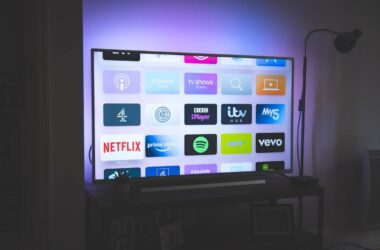

If you’re trying to manage your subscription and are unsure where to start, you’re not alone. Many users find it confusing to cancel or switch plans, especially when billing is handled through different platforms.
Whether you want to stop your subscription for now or move to a different plan, the process is actually simple once you know the right steps. The confusion usually comes from not knowing where you subscribed from or which method to use.
In this guide, you will learn exactly how to cancel your BET Plus plan or change it without running into errors. We will cover every method, including web, mobile, and third-party billing options like Amazon or Apple.
Let’s start with a few important things you should know before making any changes to your plan.
In this Guide,
- Things to Know Before You Cancel or Change Your Plan
- How to Cancel Your BET Plus Subscription (Step-by-Step)
- How to Change Your BET Plus Plan
- Cancel BET Plus Through Third-Party Billing (Important)
- Why You Can’t Cancel BET Plus (Common Issues & Fixes)
- What Happens After You Cancel BET Plus?
- How to Confirm Your BET Plus Subscription Is Cancelled
- Wrapping up: Manage Your BET Plus Plan Without Confusion
- Frequently Asked Questions [FAQs]
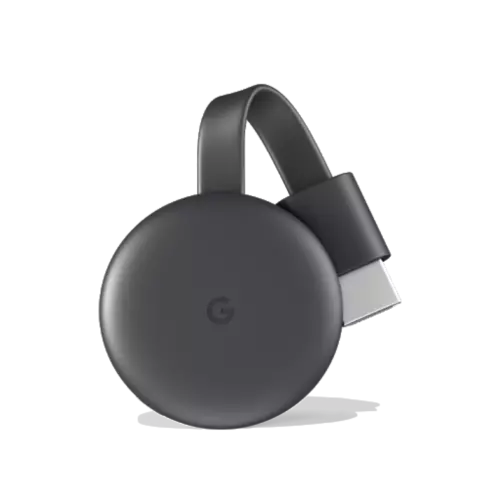
Google Chromecast
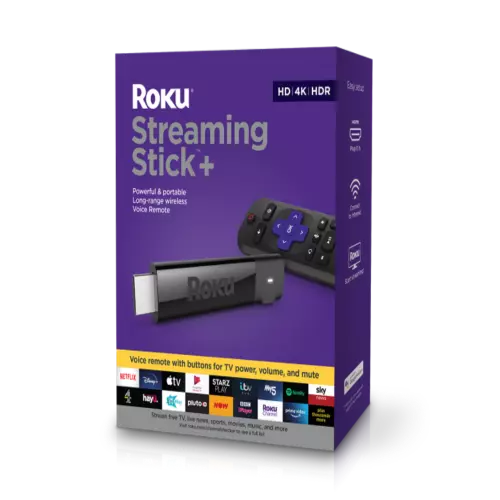
Roku
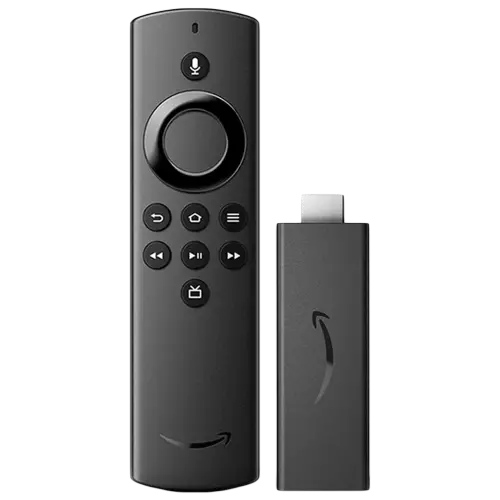
Amazon FireStick
Things to Know Before You Cancel or Change Your Plan
Before you cancel or switch your BET Plus plan, it helps to understand how billing and access work. This avoids confusion and makes sure you do not lose access earlier than expected.
Billing Cycle and Charges
BET Plus runs on a recurring billing cycle. Once you are charged for a period, that payment is usually non-refundable.
This means:
- You will not get charged again after cancellation
- But your current billing period will continue until it ends
So even if you cancel today, you can still use the service until your next billing date.
Access After Cancellation
Many users think access stops immediately after canceling, but that is not the case.
After cancellation:
- Your subscription remains active until the billing cycle ends
- You can continue watching without any restrictions
- Once the period ends, access will stop automatically
This gives you time to finish what you are watching.
Difference Between Cancel and Change
Canceling and changing your plan are not the same.
- Canceling: Stops future billing and ends your subscription after the current cycle
- Changing plan: Updates your subscription type, which may affect billing and features
If you only want to adjust your plan, you do not need to cancel completely.
Also Read: How Many Devices Can Stream BET Plus at Once? Quick Guide
How to Cancel Your BET Plus Subscription (Step-by-Step)
Canceling your BET Plus plan is simple once you follow the right method. The steps depend on where you originally subscribed. Many users try to cancel from the wrong place, which is why it does not work.
Let’s go through each method.
Cancel on Web Browser
If you subscribed directly through the BET Plus website, this is the easiest way to cancel.
Steps:
- Go to the BET Plus website and sign in
- Open your account or profile section
- Find Subscription or Billing settings
- Click on Cancel Subscription
- Confirm your cancellation
Once done, your plan will not renew after the current billing cycle.
Cancel via Mobile App
If you subscribed through your phone, the cancellation usually happens through your app store account, not inside the app itself.
On Android:
- Open the Google Play Store
- Go to Payments & Subscriptions
- Select BET Plus
- Tap Cancel Subscription
On iPhone:
- Open your settings and tap your Apple ID
- Go to Subscriptions
- Select BET Plus
- Tap Cancel Subscription
Cancel Through TV or Streaming Device
If you subscribed using a device like a Fire TV or Roku, you need to cancel through that platform.
For example:
- On the Amazon Fire TV Stick, go to your Amazon subscriptions
- On Roku, manage subscriptions through your Roku account
Do not try to cancel from the BET Plus app in this case, as it will not show the option.
Once you cancel using the correct method, your subscription will stay active until the current period ends.
Also Read: How to Activate BET Plus via Amazon Prime Video Channels
How to Change Your BET Plus Plan
If you do not want to cancel completely, changing your plan is a better option. This lets you adjust your subscription based on what you need without losing access.
The process is simple, but it depends on where you subscribed.
Upgrade Your Plan
If BET Plus offers multiple plans in your region, you can upgrade to a higher plan for more features or better access.
To upgrade:
- Go to your account or subscription settings
- Select the available plan options
- Choose the plan you want
- Confirm the change
Upgrades usually take effect immediately, and you may be charged the difference right away.
Downgrade Your Plan
If you want to reduce your cost, you can switch to a lower plan.
Steps are similar:
- Open your subscription settings
- Choose a lower plan
- Confirm the change
Downgrades usually apply at the end of your current billing cycle. This means you keep your current plan benefits until your next billing date.
When Changes Take Effect
This is important to understand:
- Upgrades: Usually apply instantly
- Downgrades: Apply after the current billing period ends
Also, if you subscribed through a third-party platform like Apple or Amazon, you need to make changes through that platform.
Also Read: Does BET Plus Support Multiple Profiles? Watch History & Account Use
Cancel BET Plus Through Third-Party Billing (Important)
If you subscribed to BET Plus through another platform, you cannot cancel it from the BET Plus app or website. This is one of the most common reasons people think cancellation is not working.
You must cancel it from the same platform where you started the subscription.
Cancel via Amazon
If you signed up through Amazon, your billing is managed there.
Steps:
- Go to your Amazon account
- Open Memberships & Subscriptions
- Find BET Plus in the list
- Click Cancel Subscription and confirm
You can also manage this on devices like Amazon Fire TV Stick through your Amazon account settings.
Cancel via Apple
If you subscribed using an iPhone, iPad, or Apple TV, your subscription is handled by Apple.
Steps:
- Open your device settings
- Tap your Apple ID
- Go to Subscriptions
- Select BET Plus
- Tap Cancel Subscription
Make sure you are signed in with the same Apple ID used during purchase.
Cancel via Roku
If you signed up through Roku, you need to cancel it from your Roku account.
Steps:
- Open your Roku account settings
- Go to Manage Subscriptions
- Select BET Plus
- Choose Cancel Subscription
You can also do this directly on your Roku device.
Also Read: How to Enable Subtitles or Change Audio Language on BET Plus
Why You Can’t Cancel BET Plus (Common Issues & Fixes)
If you are trying to cancel but do not see the option, it can feel frustrating. In most cases, the issue is simple and can be fixed quickly once you know what’s causing it.
Let’s go through the common reasons.
Subscription Not Visible
If your subscription is not showing, you are likely checking the wrong platform.
For example:
- Subscribed via Apple but checking on the website
- Subscribed via Amazon but checking inside the app
Always go to the same platform where you made the payment.
Wrong Account Login
Many users have multiple email accounts and accidentally log into the wrong one.
To fix this:
- Check which email was used for the subscription
- Log out and sign in with the correct account
- Try logging in on another device to confirm
Once you are in the right account, the subscription should appear.
Payment Still Active After Cancellation
If you canceled but still see charges or access, it may be due to the billing cycle.
Here’s what happens:
- Your current billing period remains active after cancellation
- You will not be charged again after the next billing date
If you are still being charged after that date, check your subscription status again or contact support.
These issues are common, but once you identify the cause, they are easy to fix.
Also Read: How to Download BET Plus Shows for Offline Viewing
What Happens After You Cancel BET Plus?
Once you cancel your BET Plus plan, a few things happen behind the scenes. Understanding this helps you avoid confusion about access and billing.
Access Until Billing Period Ends
Your subscription does not stop immediately after cancellation.
You can still:
- Watch all content
- Use all features
- Access your account normally
This continues until your current billing cycle ends. After that, your access will stop automatically.
No Future Charges
After cancellation is confirmed:
- You will not be charged again
- Auto-renewal is turned off
Just make sure you received a confirmation to avoid any confusion later.
Your Watch History and Data
Your account does not get deleted when you cancel.
This means:
- Your watch history stays saved
- Your preferences remain the same
- You can pick up where you left off if you return
Everything stays linked to your account.
Re-Subscribing Later
If you decide to come back, you can resubscribe anytime.
Simply:
- Log in to your account
- Choose a plan
- Start your subscription again
Your account will be restored with your previous data.
Canceling does not mean losing everything. It just pauses your access until you decide to return.
Also Read: How to Activate BET & BET Plus
How to Confirm Your BET Plus Subscription Is Cancelled
After canceling, it is important to make sure everything went through correctly. This avoids surprise charges later and gives you peace of mind.
Here’s how you can confirm it.
Check Your Subscription Status
Go back to the same place where you canceled your plan.
Look for your subscription status. It should show something like:
- Cancelled
- Expires on [date]
If you still see Active without an expiry note, the cancellation may not be complete.
Look for Confirmation Email
Most platforms send a confirmation email after cancellation.
Check your inbox and spam folder for a message confirming that your subscription has been cancelled. This email usually includes the end date of your access.
Verify on Billing Platform
If you subscribed through a third-party platform, double-check there.
For example:
- Check your subscriptions on Apple
- Review your account on Amazon
Make sure BET Plus is listed as cancelled.
Check Your Bank or Payment Method
If you want to be extra sure, keep an eye on your next billing cycle.
You should not see any new charges after the expiry date. If you do, it may mean the cancellation did not go through properly.
Taking a minute to confirm cancellation can save you from unexpected charges later.
Also Read: How to Watch BET on Hulu: BET Awards, Originals & More

ExpressVPN Review | Why is this the Best VPN Service?
Is NordVPN Any Good? This Review is All You Need
Wrapping up: Manage Your BET Plus Plan Without Confusion
Managing your BET Plus plan does not have to be complicated. Once you know where you subscribed from, the rest becomes simple. Whether you want to cancel your plan or switch to a different one, the steps are easy to follow.
Most issues happen when users try to cancel from the wrong platform or use the wrong account. Once you fix that, the process works smoothly. Just remember that your access continues until the end of the billing cycle, even after cancellation.
If you are not ready to cancel, changing your plan is a flexible option. It lets you adjust your subscription without losing access.
Take a few minutes to follow the right steps, and you will be able to manage your BET Plus plan without any confusion.
If you like what you read, give us a quick share on your social media platform and give us all the love and support. You can also connect with us on our Telegram Channel, Facebook Page, Reddit Community, and X to never miss out on tech updates.
Frequently Asked Questions [FAQs]
Yes, you can cancel anytime. Your access will continue until the end of your current billing cycle.
No, payments are usually non-refundable. You can still use the service until your billing period ends.
You are likely checking the wrong platform. Cancel from the same place where you subscribed.
Yes, you can log in anytime and subscribe again. Your account details and history will still be there.
Deleting the app does not cancel your subscription. You need to cancel it from your account settings.
Yes, you can upgrade or downgrade your plan from your account settings if options are available.
Check your subscription status or look for a confirmation email with the expiry date.
No, your subscription works across devices. You only need to cancel if you want to stop billing.
Before You Leave
Get Our Prime Content Delivered to your Inbox for Free!! Join the Ever-Growing Community… Right Now.
Give this article a quick share,