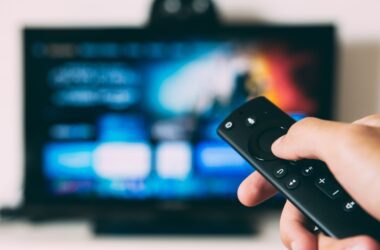


If you’re planning to watch BET Plus but are unsure whether your device supports it, you’re not alone. Many users install the app, only to find it missing, not working, or limited in features. That’s why knowing the full list of BET Plus supported devices & setup steps can save you a lot of time and frustration.
BET Plus works on a wide range of devices, including Smart TVs, streaming sticks, mobile phones, and web browsers. But the setup process can feel slightly different on each one. A small mistake like downloading the wrong app or using the wrong login method can stop things from working properly.
In this guide, you’ll find a complete list of supported devices along with clear, step-by-step setup instructions for each. We will also cover common setup issues and how to fix them so you can start streaming without any confusion.
Let’s begin with a quick overview of how BET Plus works across different devices and why compatibility matters.
In this Guide,
- What Devices Support BET Plus? (Quick Overview)
- Full List of BET Plus Supported Devices
- How to Set Up BET Plus on Smart TVs
- How to Set Up BET Plus on Fire TV and Roku
- How to Set Up BET Plus on Mobile Devices
- How to Watch BET Plus on a Web Browser
- Common Setup Problems and How to Fix Them
- Tips to Get the Best Streaming Experience on BET Plus
- Wrapping up: Start Watching BET Plus on Any Device Easily
- Frequently Asked Questions [FAQs]
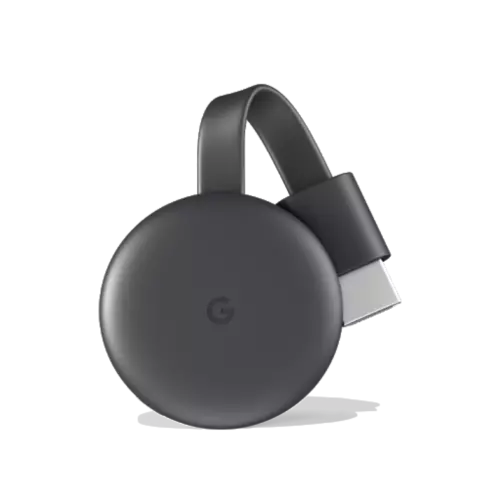
Google Chromecast
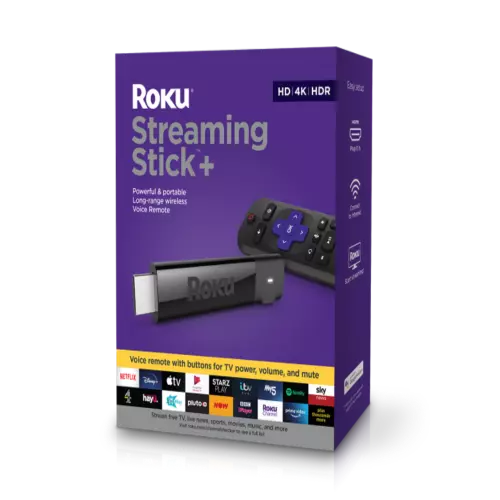
Roku
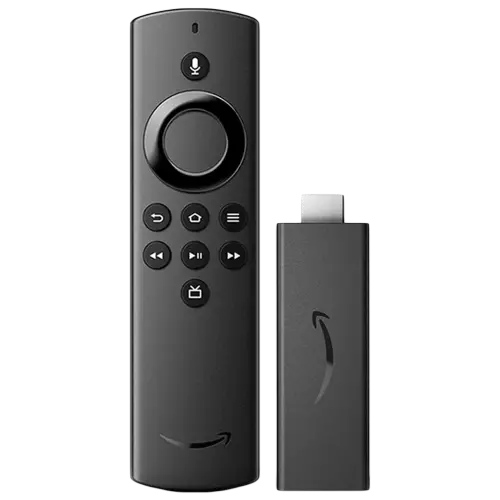
Amazon FireStick
What Devices Support BET Plus? (Quick Overview)
Before you jump into setup, it helps to understand how BET Plus works across different devices. This makes the process smoother and helps you avoid common mistakes.
How BET Plus Works Across Devices
BET Plus is a subscription-based streaming service. Once you subscribe, you can access your account on multiple devices using the same login details.
You do not need a TV provider here. Just your BET Plus email and password are enough.
You can watch BET Plus on:
- Smart TVs
- Streaming devices
- Mobile phones and tablets
- Web browsers
The experience is mostly the same across devices. You sign in, pick a show, and start watching. But the way you install and set up the app can differ slightly.
Why Device Compatibility Matters
Not every device supports every app. If your device is outdated or not supported, you may:
- Not find the BET Plus app in the store
- Face installation errors
- Experience poor performance or crashes
This is why checking compatibility first is important.
For example, newer Smart TVs and streaming devices usually work well. Older models may not support the app at all.
If your device is not supported, you can still watch BET Plus using alternatives like a browser or a streaming device connected to your TV.
Also Read: How to Cancel or Change Your BET Plus Plan | Easy Guide
Full List of BET Plus Supported Devices
Now, let’s get into the complete list of devices where you can watch BET Plus. This will help you quickly check if your current device is supported or if you need an alternative.
Smart TVs
BET Plus works on most modern Smart TVs, especially newer models.
Supported categories include:
- Samsung Smart TVs
- LG Smart TVs
- Android TV-based devices
On these TVs, you can download the BET Plus app directly from the app store and sign in with your account.
Streaming Devices
Streaming devices are one of the most reliable ways to watch BET Plus.
Common supported devices:
- Amazon Fire TV Stick
- Roku
- Apple TV
These devices are updated regularly, which helps avoid app compatibility issues.
Mobile Devices
You can easily watch BET Plus on your phone or tablet.
Supported platforms:
- Android phones and tablets via the Google Play Store
- iPhones and iPads via Apple App Store
The mobile app is smooth and convenient for watching on the go.
Web Browsers
If you prefer watching on a laptop or desktop, BET Plus also works on web browsers.
Supported browsers include:
- Google Chrome
- Safari
- Microsoft Edge
Just sign in on the official website and start streaming.
Gaming Consoles (Limited Support)
Support for gaming consoles is limited and may not be available on all platforms.
If your console does not support BET Plus, you can still watch using a browser or connect a streaming device to your TV.
This list covers most ways you can access BET Plus today. If your device is supported, setup is usually quick and easy.
Also Read: How Many Devices Can Stream BET Plus at Once? Quick Guide
How to Set Up BET Plus on Smart TVs
Setting up BET Plus on a Smart TV is simple once you know where to look. Most modern TVs support the app, and the process usually takes just a few minutes.
Follow these steps carefully.
1. Download and Install the App
- Start by opening your TV’s app store.
- Search for BET Plus and install the app. If you do not see it, your TV may not support the app or may need a software update.
- Make sure you download the correct app. Do not confuse BET with BET Plus, as both are different.
2. Open the App and Sign In
Once installed, open the BET Plus app.
You will see options like:
- Sign In
- Start Free Trial
If you already have a subscription, choose Sign In and enter your email and password.
3. Use Activation Code (If Required)
Some Smart TVs may show an activation code instead of direct login.
If this happens:
- Keep the code visible on your TV
- Open a browser on your phone or laptop
- Visit the official activation page
- Enter the code and sign in
Once done, your TV will automatically refresh and log you in.
4. Fix Common Setup Issues
If the app does not work properly, try these quick fixes:
- Restart your TV
- Update your TV software
- Reinstall the BET Plus app
These steps usually solve most setup problems.
That’s it. Your Smart TV should now be ready for streaming.
Also Read: Where to Watch BET Awards Live?
How to Set Up BET Plus on Fire TV and Roku
Streaming devices like Fire TV and Roku are some of the easiest ways to watch BET Plus. They are fast, reliable, and regularly updated, which makes setup smooth.
Let’s go step by step.
1. Install the BET Plus App
- Turn on your device and open the app store.
- Search for BET Plus and install it on your device. If you are using an Amazon Fire TV Stick, use the Amazon Appstore. On Roku, use the Roku Channel Store.
- Make sure you select the correct app before installing.
2. Open the App and Sign In
- After installation, open the BET Plus app.
- You will see options to sign in or start a subscription. If you already have an account, select Sign In and enter your details.
3. Use Activation Code (If Shown)
Some devices may ask you to activate your account using a code.
If you see a code:
- Keep it visible on your TV screen
- Open a browser on your phone or laptop
- Visit the official activation page
- Enter the code and sign in
Once completed, your device will automatically log in.
4. Fix Setup Issues
If something does not work during setup, try these:
- Restart your Fire TV or Roku device
- Check for system updates
- Remove and reinstall the BET Plus app
These quick fixes solve most problems.
That’s all you need to get BET Plus running on your streaming device.
Also Read: How to Watch BET Plus for Free
How to Set Up BET Plus on Mobile Devices
Setting up BET Plus on your phone is one of the easiest ways to start watching. Whether you use Android or iPhone, the steps are quick and simple.
Let’s go through it.
1. Install the BET Plus App
Start by opening your app store.
- If you use Android, go to the Google Play Store.
- If you use an iPhone, go to the Apple App Store.
Search for BET Plus and install the app. Make sure it is the official app before downloading.
2. Open the App and Sign In
- Once installed, open the app.
- You will see options to sign in or start a subscription. If you already have an account, tap Sign In and enter your email and password.
You should now have access to all content.
3. Fix Common Mobile Issues
If the app does not work properly, try these simple fixes:
- Close the app and open it again
- Check for app updates in the store
- Restart your phone
On Android, you can also clear app cache from settings if the app feels slow or keeps crashing.
Also Read: How to Activate BET Plus via Amazon Prime Video Channels
How to Watch BET Plus on a Web Browser
If you prefer watching on a laptop or desktop, using a browser is a simple and reliable option. You do not need to install any app here, just sign in and start streaming.
Let’s go step by step.
1. Use a Supported Browser
BET Plus works best on modern browsers.
You can use:
- Google Chrome
- Safari
- Microsoft Edge
Make sure your browser is updated to the latest version for smooth playback.
2. Open the Official BET Plus Website
- Go to the official BET Plus website on your browser.
- Once the page loads, click on Sign In.
- Enter your account email and password, and you will be logged in instantly.
3. Start Streaming
- After logging in, browse through shows or search for what you want to watch.
- Click on any title, and it should start playing right away.
4. Fix Browser-Related Issues
If something does not work, try these quick fixes:
- Clear your browser cache and cookies
- Disable extensions that may block content
- Try a different browser if needed
Also, make sure your internet connection is stable to avoid buffering.
Watching on a browser is a great backup option if your app is not working on other devices.
Also Read: How to Watch BET on Hulu: BET Awards, Originals & More
Common Setup Problems and How to Fix Them
Even after installing BET Plus, you might run into small issues during setup. These problems are common and usually easy to fix with a few quick steps.
Let’s go through them.
App Not Installing
If you cannot find or install the app, your device may not be supported or updated.
Try this:
- Check if your device is on the supported list
- Update your device software
- Restart your device and try again
If the app still does not appear, your device may not support BET Plus.
Login or Activation Errors
If you cannot sign in or the activation fails, it is usually due to account or session issues.
You can fix this by:
- Double-checking your email and password
- Resetting your password if needed
- Generating a new activation code and entering it quickly
Also, try logging in on another device to confirm your account is working.
Playback Issues After Setup
If videos are not playing properly after setup, the issue is often related to the internet or app performance.
Try these steps:
- Restart your device
- Switch to a stronger internet connection
- Update or reinstall the app
You can also test your connection using Speedtest by Ookla to make sure your speed is stable.
Most setup issues are minor and can be fixed quickly once you identify the cause.
Also Read: How to Reactivate Your BET Plus Subscription
Tips to Get the Best Streaming Experience on BET Plus
Once BET Plus is set up, a few small tweaks can make a big difference in how smoothly everything runs. These tips help you avoid buffering, improve video quality, and keep the app running without issues.
Use a Stable Internet Connection
Streaming works best on a strong and stable connection.
For smooth playback:
- Use Wi-Fi instead of mobile data when possible
- Stay close to your router
- Avoid using too many devices on the same network
If you are unsure about your speed, you can check it using Speedtest by Ookla.
Keep Your App Updated
App updates are important. They fix bugs and improve performance.
Check for updates regularly on:
- Google Play Store
- Apple App Store
Using the latest version helps avoid crashes and playback issues.
Restart Your Device Occasionally
Leaving your device on for long periods can slow things down.
A quick restart:
- Clears temporary glitches
- Refreshes system performance
- Helps apps run more smoothly
Doing this once in a while keeps everything working well.
Close Background Apps
Too many apps running at the same time can affect streaming.
Close unused apps to:
- Free up memory
- Improve app performance
- Reduce lag and freezing
This is especially helpful on older devices.
These simple tips can improve your experience without much effort.

ExpressVPN Review | Why is this the Best VPN Service?
Is NordVPN Any Good? This Review is All You Need
Wrapping up: Start Watching BET Plus on Any Device Easily
Getting BET Plus up and running is simple once you know which devices are supported and how the setup works. Whether you are using a Smart TV, streaming device, phone, or browser, the steps are easy to follow and only take a few minutes.
Most issues happen due to small things like using an outdated app, weak internet, or unsupported devices. Once you fix these, the experience becomes smooth and reliable.
If your device is not supported, you still have options. Using a streaming device or a web browser can help you access BET Plus without any trouble.
Take a few minutes to set things up the right way, and you will be ready to enjoy your favorite shows without interruptions.
If you like what you read, give us a quick share on your social media platform and give us all the love and support. You can also connect with us on our Telegram Channel, Facebook Page, Reddit Community, and X to never miss out on tech updates.
Frequently Asked Questions [FAQs]
BET Plus works on Smart TVs, streaming devices, mobile phones, and web browsers. Most modern devices are supported.
Yes, you can sign in on multiple devices using the same account and switch between them easily.
Your TV may not support the app or may need a software update. You can use a streaming device as an alternative.
No, BET Plus is a standalone subscription service. You only need your account login.
This can happen due to internet issues, outdated apps, or device glitches. Restarting your device or updating the app usually helps.
Yes, you can watch it on browsers like Google Chrome or Safari by signing in to your account.
No, it requires a paid subscription to access full content.
Try clearing the cache, updating the app, or reinstalling it. These steps fix most performance issues.
Before You Leave
Get Our Prime Content Delivered to your Inbox for Free!! Join the Ever-Growing Community… Right Now.
Give this article a quick share,