
Quick Links
- Before You Change the RSS Feed, Check Where Your Podcast Is Hosted
- How to Change the RSS Feed on Spotify for Creators for an Externally Hosted Podcast
- Don’t Change the RSS Feed Just Because You Rebranded the Podcast
- If Your Podcast Is Hosted by Spotify and You Want to Leave
- Moving Your Podcast to Spotify for Creators
- What Should You Do at Your Old Podcast Host?
- Do You Need to Update the RSS Feed on Every Podcast App Manually?
- What Should You Do Before Changing Your Podcast RSS Feed?
- Do You Need to Tell Your Audience You Changed RSS Feeds?
- What If Spotify Doesn’t Let You Update the RSS Feed?
- What to Check After Changing the RSS Feed
- Can Changing Your RSS Feed Make You Lose Podcast Followers?
- Frequently Asked Questions [FAQs]
- Wrapping Up: Change the Feed Without Making Your Listeners Notice
Changing your podcast RSS feed on Spotify sounds like a small setting, but it is usually part of something much bigger: moving your podcast from one hosting platform to another.
Maybe your current host has become expensive, the analytics are not useful enough, you are running into technical issues, or you have simply found another podcast host that suits your workflow better. Whatever the reason, moving the show means your podcast may get a new RSS feed, and Spotify needs to know where that new feed lives.
There is one important change since I originally wrote this guide. Spotify for Podcasters is now Spotify for Creators, and the way you change an RSS feed depends on whether Spotify hosts your podcast or you use another hosting platform.
If you use Buzzsprout, Transistor, Captivate, Libsyn, Podbean, or another external podcast host, changing the RSS link inside Spotify is quite straightforward. If Spotify itself hosts your podcast and you are moving somewhere else, you don’t simply edit the feed URL; you redirect the existing Spotify feed to the new host.
That distinction is important, so let’s do both properly.
And if RSS itself feels confusing before we begin, I have a separate Tiny Quip guide explaining what a podcast RSS feed is, how it distributes episodes, and what can go wrong with one.
YOUR AUDIENCE IS YAWNING
There are two factors that can make your audience sleepy while listening to your podcast. One is a boring script, and the second is poor audio.
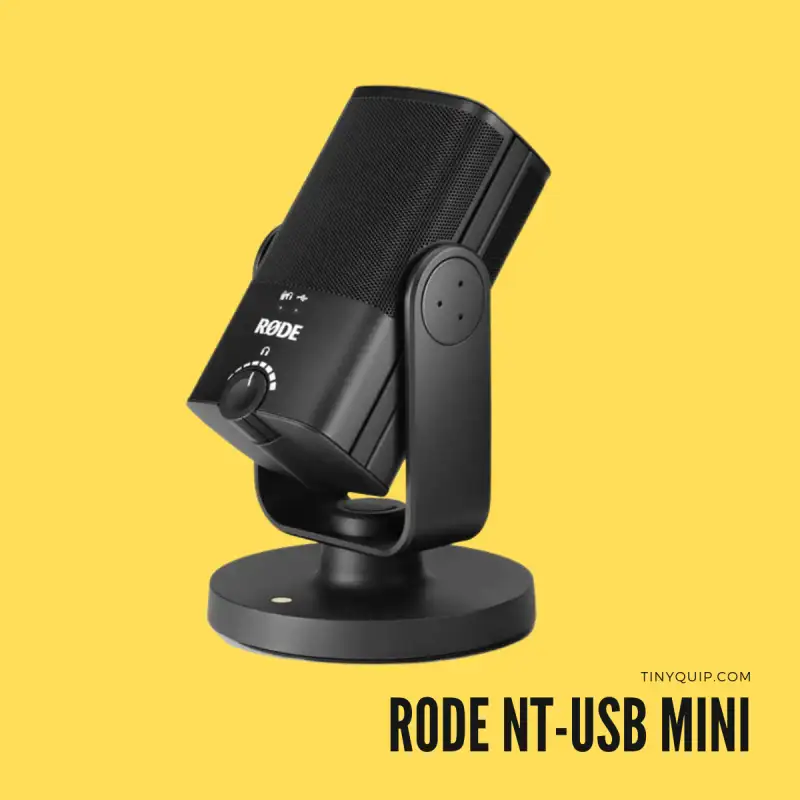
Here are my favorite 10 best microphones for podcasters that will make you sound-sick professional. And also budget-friendly for starters and professionals.
Before You Change the RSS Feed, Check Where Your Podcast Is Hosted
Spotify can contain podcasts from two different setups.
Your podcast may be hosted somewhere else, with Spotify simply reading the RSS feed generated by that provider. Or your show may be hosted directly with Spotify for Creators, in which case Spotify generates the RSS feed itself.
The easiest way to think about it is:
External host → update the RSS feed in Spotify for Creators.
Spotify-hosted show moving away → create a 301 redirect from Spotify to the new RSS feed.
There is also a third possibility: you are moving from another host to Spotify for Creators. In that case, Spotify imports the podcast, and you then redirect the old host’s RSS feed toward the new Spotify feed.
Do not mix these processes together because they solve different problems.
How to Change the RSS Feed on Spotify for Creators for an Externally Hosted Podcast
If your podcast is hosted outside Spotify, this is the simple version.
Spotify’s current instructions are:
- Sign in to Spotify for Creators.
- Select the podcast you want to update.
- Open Settings.
- Find the current RSS feed and hosting provider.
- Select Update.
- Paste the new RSS feed URL.
- Confirm your new hosting provider.
- Select Submit.
That’s it.
Spotify specifically says this option is for podcasts hosted somewhere else and not for shows hosted directly by Spotify.
The older version of this Tiny Quip guide mentioned an email-verification step, a limited number of RSS changes within 30 or 90 days, and an Edit button beside the RSS field. Spotify’s current documentation does not describe those requirements, so I wouldn’t keep them in the guide.
Before clicking Submit, copy the new feed directly from your new podcast host rather than typing it manually. One wrong character in a long RSS URL is enough to send Spotify to the wrong place.
I would also open the feed once in a browser before using it. You may see XML rather than a beautiful webpage, which is perfectly normal. What matters is that the feed loads rather than returning an error or login screen.
Don’t Change the RSS Feed Just Because You Rebranded the Podcast
This is another point I would correct from my older guide.
Changing your podcast name, artwork, description, or general branding usually doesn’t require a new RSS feed.
Those details live inside the existing feed. You update them through your podcast host, the host updates the RSS metadata, and Spotify eventually reads the new information.
For example, if all you want to do is change how Spotify categorizes your show, you don’t need to replace the RSS address. I already have a separate guide on how to add or change your podcast category on Spotify.
Changing the actual feed URL usually happens when the underlying hosting setup changes, not because you changed your logo.
If Your Podcast Is Hosted by Spotify and You Want to Leave
This process is different.
If Spotify for Creators currently hosts your show and you are moving to another podcast host, Spotify tells creators to:
- Sign up with the new podcast host.
- Import the existing podcast and episodes into that host.
- Get the RSS feed generated by the new host.
- Redirect the Spotify RSS feed to that new feed.
Once your new host has successfully imported the show, open Spotify for Creators on the web, go to Settings, find Redirect your podcast, paste your new RSS feed, and select Redirect. Spotify currently notes that this redirect cannot be set up through the Spotify for Creators mobile app.
This is a 301 redirect, which essentially tells Spotify and other podcast platforms:
This podcast feed has permanently moved over here.
That is considerably better than simply abandoning the old feed.
Your audience can continue following the show, while podcast apps that use the old feed have a way to discover the new one.
Spotify says the redirect may take up to seven days to complete. If you plan to delete your Spotify for Creators account afterwards, Spotify recommends waiting at least one week after creating the redirect so you can make sure the audience has moved properly. So, it’s important to be a little patient.
If you use Spotify Subscriptions for the show, Spotify also says you should disable them from the Monetize section before moving away. If you are currently working with subscriptions, I have a separate guide on how to create a paid podcast subscription on Spotify.
Moving Your Podcast to Spotify for Creators
You can also do the opposite and move an externally hosted podcast into Spotify.
Spotify currently lets you search for the show or paste its existing RSS feed, import the episodes and podcast metadata, and then start hosting it through Spotify for Creators.
The important part is what happens after the import.
Wait until Spotify confirms that the show has been fully imported. Spotify then gives you the new Spotify for Creators RSS feed, which you take back to your old hosting provider and enter into its redirect or migration setting. Depending on the host, that option may be called a 301 redirect, redirect feed, or simply move your show.
Spotify supports migration instructions for several hosts, including Buzzsprout, Blubrry, Libsyn, Podbean, Podomatic, Simplecast, SoundCloud, Spreaker, Squarespace, and Transistor.
Do not start publishing new episodes through Spotify and forget the redirect.
Spotify specifically warns that if you import the show but never redirect the old RSS feed, new episodes uploaded through Spotify for Creators may not reach the audience that still follows the old feed.
That is exactly the kind of migration mistake we are trying to avoid.
What Should You Do at Your Old Podcast Host?
This part matters just as much as updating Spotify.
When moving between hosts, your old RSS feed should normally redirect to the new RSS feed. A proper podcast migration is not simply:
Old feed disappears → new feed appears.
It should look more like:
Old feed → permanent redirect → new feed.
That redirect gives podcast apps a path from the old location to the new location and helps keep existing followers attached to the same show.
Many podcast hosts include a migration or redirect option specifically for this reason. If you cannot find it, search the host’s support documentation for 301 redirect, move podcast, leave host, or redirect RSS feed.
I would not cancel the old hosting account until you have completed the migration steps required by that host and confirmed the redirect is working.
Do You Need to Update the RSS Feed on Every Podcast App Manually?
Not necessarily.
The old version of this guide told readers to go to every podcast platform and replace the RSS feed individually. That’s more work than a properly handled migration should require.
If the old RSS feed permanently redirects to the new feed, compatible podcast directories can follow that redirect rather than treating the new URL as a completely unrelated show.
That said, platforms can manage podcast ownership differently, so I would still check the important destinations after migrating.
For Tiny Quip’s purposes, I would check at least:
- Spotify
- Apple Podcasts
- YouTube/YouTube Music if you use RSS ingestion
- Amazon Music
- Pocket Casts
- Any other platform generating a meaningful share of your audience
If a platform has its own creator dashboard with an RSS-feed field, verify that it has recognized the move rather than assuming everything worked.
The redirect does the heavy lifting, but checking the major destinations afterwards is worth the few minutes.
What Should You Do Before Changing Your Podcast RSS Feed?
I still agree with one thing from the original guide: don’t begin the move without knowing what you already have.
Before changing hosts, I would keep copies of your original audio files, artwork, descriptions, show notes, and anything else you wouldn’t want to recreate. Most good migration tools import your existing content, but that doesn’t mean your podcast host should become the only place where the original recordings exist.
Also take a quick look at the episodes after they have been imported into the new host.
Make sure the number of episodes looks right, the artwork is correct, titles and descriptions arrived properly, and old episodes actually play.
If you have hundreds of episodes, you obviously don’t need to manually listen to every one. Check a few older episodes, a few newer ones, and anything unusual such as bonus or trailer episodes.
The migration is much easier to fix before the redirect goes live.
Do You Need to Tell Your Audience You Changed RSS Feeds?
Usually, no.
This is another thing I would simplify from the old article.
I previously suggested publishing announcements, emails, special episodes, and website banners before changing an RSS feed. For a normal host migration handled with a proper redirect, that is generally unnecessary.
Your audience should ideally notice nothing.
They open their podcast app, your next episode appears, and life continues.
That’s actually the sign of a good migration.
I would notify listeners only when the move changes something they genuinely need to know about, for example, a paid subscription is changing, private-feed users need to take action, an app-specific feature is disappearing, or you know a particular group of subscribers must manually update something.
Otherwise, there is no reason to turn a technical backend change into an event for your listeners.
What If Spotify Doesn’t Let You Update the RSS Feed?
First, make sure you are using the correct process.
If Spotify hosts the show, you won’t see the same RSS-update workflow that an externally hosted podcast uses. You need the redirect process instead.
If the podcast is hosted elsewhere, open the show in Spotify for Creators and check Settings for the current RSS link and hosting provider. The account also needs access to manage that podcast.
I wouldn’t start by clearing browser caches and deleting browser data, as the older guide suggested. That may fix the occasional interface problem, but it isn’t the most likely cause of an RSS migration problem.
Instead, check whether:
- you have selected the correct podcast;
- the show is hosted by Spotify or somewhere else;
- the new RSS feed actually loads;
- your new host finished importing the show;
- you have sufficient access to manage the podcast;
- the old host has created the required redirect.
If everything looks correct and Spotify still refuses the new feed, use Spotify for Creators support. Spotify’s current RSS-update documentation specifically directs creators who cannot access or update their show to contact support.
What to Check After Changing the RSS Feed
Once the feed has moved, I would not immediately consider the job finished.
Publish nothing new for a moment and check the migration itself.
Open the new RSS feed and make sure the podcast information appears correctly. Test an episode. Then open the show on Spotify and confirm the expected episodes are still there.
If you changed hosts, try opening the old RSS feed too. It should ultimately direct to the new location rather than behave like an abandoned separate podcast.
Over the following days, check your major podcast platforms and pay attention to anything unusual such as duplicate shows, missing episodes, artwork disappearing, or a sudden split in your analytics.
If you do see duplicates, don’t start deleting random copies immediately. Find out which feed each listing is using and make sure the redirect is correct first.
Also remember that podcast updates are not always instant. Spotify says new and updated episodes distributed from a Spotify-hosted show to other platforms usually appear within a few hours, though creators should allow up to 24 hours.
A host migration can involve additional caching and directory processing, so give platforms a reasonable amount of time before assuming every small delay is a broken feed.
Can Changing Your RSS Feed Make You Lose Podcast Followers?
It can if the migration is handled badly.
That is exactly why redirects exist.
When the old RSS feed properly points to the new one, podcast platforms have a way to understand that the show moved rather than disappeared. Spotify describes its 301 redirect specifically as a way to keep your audience subscribed after changing hosts.
Problems are more likely when somebody cancels the old host before creating the redirect, starts an entirely separate feed without migrating the original show, or accidentally creates duplicate podcast listings.
So the safest sequence is:
Import first → verify the new show → redirect the old feed → verify the redirect → then close the old hosting account when appropriate.
Not the other way around.
Frequently Asked Questions [FAQs]
If your podcast is hosted somewhere other than Spotify, sign in to Spotify for Creators, select your podcast, open Settings, find the existing RSS feed and hosting provider, choose Update, enter the new RSS URL, confirm your hosting provider, and submit the change.
If Spotify for Creators hosts the podcast itself, the external-host RSS update option does not apply. If you are leaving Spotify hosting, use the Redirect your podcast option to create a 301 redirect toward the RSS feed from your new host.
Usually not. Your podcast name, description, artwork, and other metadata can generally be changed through the existing podcast host without changing the RSS feed URL itself.
A properly handled host migration with a working 301 redirect is designed to preserve the audience attached to the existing show. The bigger risk comes from abandoning or deleting the old feed before redirecting it.
Spotify says a redirect away from Spotify for Creators can take up to seven days to complete and recommends waiting at least a week after redirecting before deleting the Spotify for Creators account.
For a normal hosting migration completed with a proper redirect, usually not. Ideally, listeners shouldn’t have to do anything. Notify them only if the migration changes their access, paid subscription, private feed, or another part of the listening experience.
For an externally hosted show, use the current Spotify for Creators settings available for your account. If you are redirecting a Spotify-hosted podcast to another host, Spotify currently says the redirect cannot be created through its mobile app and must be done on the web.
Spotify creates the RSS feed after you publish your first episode. On the web, open Spotify for Creators and go to Settings → Availability → RSS Distribution. You also need to enable the feed if you want to distribute the Spotify-hosted show to other podcast platforms.
Wrapping Up: Change the Feed Without Making Your Listeners Notice
Changing your podcast RSS feed isn’t difficult once you know which type of move you are making.
If another company hosts your podcast and you have changed hosts, update the new RSS feed inside Spotify for Creators and make sure the old host redirects its feed properly.
If Spotify for Creators hosts the podcast and you are moving away, import everything into the new host first and then use Spotify’s Redirect your podcast option to point the old feed toward the new one.
And if you’re moving to Spotify for Creators, let Spotify import the show before redirecting the feed at your old host.
The goal in all three cases is the same: your hosting changes, but your audience doesn’t have to start following a completely new podcast.
Once everything is working again, you can get back to the parts your listeners actually care about, publishing episodes, improving the show, and perhaps figuring out things such as whether Spotify pays podcasters rather than thinking about RSS redirects.
If you’re working on the rest of your Spotify setup too, Tiny Quip also has guides on how to remove podcast episodes from Spotify and transcribe a Spotify podcast.
Before You Leave
Get Our Prime Content Delivered to your Inbox for Free!! Join the Ever-Growing Community… Right Now.
Give this article a quick share,