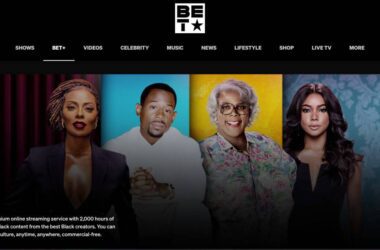

If you’re trying to watch your favorite shows but keep getting asked to sign in with a TV provider, it can feel a bit confusing at first. Many users are not sure why this step is needed or how to complete it without running into errors.
Linking your TV provider to BET or BET Plus is what gives you access to full content on certain devices. Without it, you may only see limited previews or locked episodes. The process itself is simple, but small mistakes like entering the wrong details or using an unsupported provider can stop it from working.
In this guide, you will learn exactly how to link your TV provider step by step. We will also cover what to do if thelinking fails, which devices support it, and how BET Plus works differently from regular BET access.
Let’s start by understanding what linking a TV provider actually means and why it matters.
In this Guide,
- What Does Linking a TV Provider Mean?
- Things You Need Before Linking Your TV Provider
- How to Link Your TV Provider to BET (Step-by-Step)
- How to Link Your TV Provider on BET Plus
- Common Errors While Linking TV Provider and How to Fix Them
- TV Provider Login Not Working? Try These Fixes
- Supported Devices for Linking TV Provider
- Can You Watch BET Without a TV Provider?
- Wrapping up: How to Link Your TV Provider to Bet Plus
- Frequently Asked Questions [FAQs]
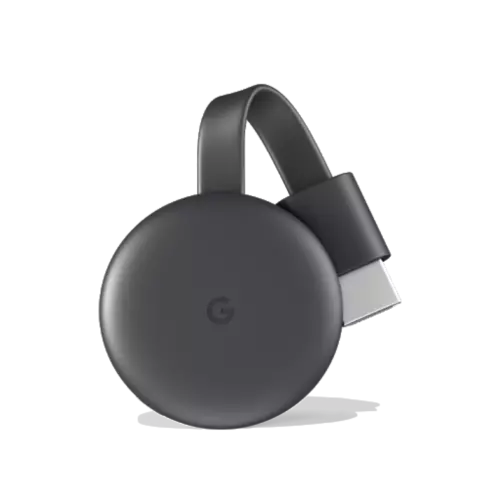
Google Chromecast
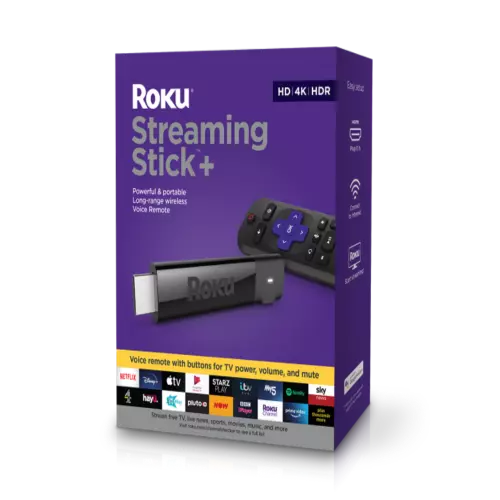
Roku
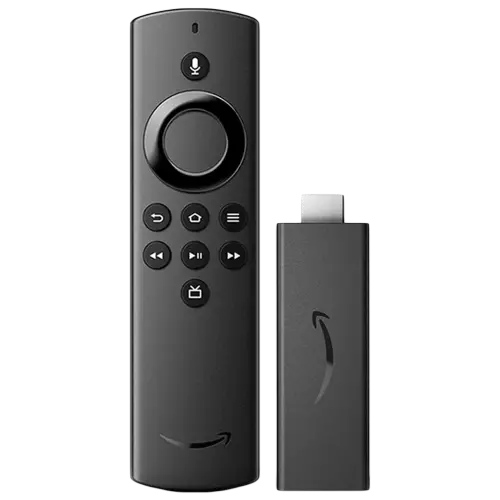
Amazon FireStick
What Does Linking a TV Provider Mean?
When you open BET on your TV or browser, and it asks for a TV provider, it simply means the app wants to confirm that you already have access through a cable or streaming subscription.
Linking your TV provider connects your BET app to your existing subscription. Once this is done, you can watch full episodes, live content, and exclusive shows without any restrictions.
Difference Between BET and BET Plus Access
This is where many people get confused.
BET and BET Plus are not the same.
- BET (with TV provider): You sign in using your cable or live TV service. This gives you access to BET content that comes with your provider package.
- BET Plus (subscription-based): This is a separate streaming service. You pay directly for it and do not need a TV provider to watch content.
So, if you are using BET Plus, you usually do not need to link a TV provider. But if you are using the BET app, linking is required to unlock content.
Why Linking Is Required
BET needs to verify that you have a valid subscription through a supported provider. This helps control access to licensed content.
Without linking:
- You may only see trailers or short previews
- Full episodes will stay locked
- Some features may not work at all
Once you link your provider, your account gets verified, and everything becomes available instantly.
Also Read: BET Plus Supported Devices List & Setup Steps
Things You Need Before Linking Your TV Provider
Before you start linking your TV provider to BET or BET Plus, it helps to have a few basic things ready. This makes the process smooth and avoids common errors that can slow you down.
Let’s go through them one by one.
Active TV Subscription
You need an active subscription with a supported TV provider. This could be a cable service or a live TV streaming service.
Make sure:
- Your subscription is active and has not expired
- Your login details are correct
- BET is included in your channel package
If BET is not part of your plan, linking will not work even if your account is valid.
Supported TV Provider
Not all providers are supported. If your provider is not listed during the login step, you will not be able to link it.
Popular supported providers often include services like AT&T, Verizon, and Xfinity.
If you do not see your provider in the list, you may need to use BET Plus instead of the regular BET app.
Stable Internet Connection
Since linking happens online, your internet connection should be stable.
A weak connection can cause:
- Activation page not loading
- Login failing midway
- Linking process getting stuck
Using a strong Wi-Fi connection is usually the best option.
Device Ready for Activation
Make sure your device is ready before you begin.
This includes:
- Opening the BET app on your TV or device
- Keeping your phone or laptop nearby to enter the activation code
- Making sure your device software is up to date
Having everything ready saves time and avoids repeated steps.
Once these basics are in place, you are ready to link your TV provider.
Also Read: How to Activate BET & BET Plus
How to Link Your TV Provider to BET (Step-by-Step)
Now that everything is ready, let’s walk through the exact steps to link your TV provider to BET. The process is simple and usually takes just a couple of minutes if done correctly.
Follow each step carefully.
1. Open the BET App or Website
Start by opening the BET app on your Smart TV, streaming device, or mobile device. You can also visit the BET website on your browser.
Once opened, look for the option that says Sign In or Connect with TV Provider.
2. Get the Activation Code
After selecting the sign-in option, a unique activation code will appear on your screen.
This code is temporary, so do not wait too long. You will need to enter it on another device, like your phone or laptop.
Keep this screen open while you move to the next step.
3. Visit the Activation Page
On your phone or computer, open a browser like Google Chrome or Safari and go to the official BET activation page.
Enter the activation code exactly as shown on your TV screen.
Make sure:
- There are no typing mistakes
- You enter the code before it expires
4. Sign In with Your TV Provider
After entering the code, you will be asked to select your TV provider from a list.
Choose your provider and sign in using your provider account details. This is the same username and password you use for your cable or streaming service.
5. Complete the Linking Process
Once you sign in successfully, your device will automatically refresh and complete the linking process.
You should now have full access to BET content without any restrictions.
That’s it. Your TV provider is now linked, and you can start watching right away.
If something does not work during this process, don’t worry.
Also Read: How Many Devices Can Stream BET Plus at Once? Quick Guide
How to Link Your TV Provider on BET Plus
This is where many users get confused. You may try to link your TV provider to BET Plus, but the option does not alwayswork the same way as it does on BET.
Let’s clear this up.
When Linking Works on BET Plus
In most cases, BET Plus does not require a TV provider. It is a standalone subscription service, which means you sign in using your BET Plus account, not your cable provider.
So, if you already have a BET Plus subscription, you should:
- Open the BET Plus app
- Sign in using your email and password
- Start watching without linking to any provider
When You Might See a TV Provider Option
Sometimes, users open the regular BET app instead of BET Plus. This is where the confusion happens.
The BET app asks for a TV provider because it relies on cable or live TV access. BET Plus does not.
If you are seeing a TV provider login screen, check:
- Are you using the BET app instead of BET Plus?
- Did you install the correct app on your device?
Switching to the correct app often solves the issue instantly.
Key Difference You Should Remember
- BET requires a TV provider login
- BET Plus requires a direct subscription login
Trying to link a TV provider on BET Plus will not work if your access is subscription-based.
What You Should Do Instead
If you are using BET Plus:
- Log in with your BET Plus account
- Make sure your subscription is active
- Avoid the TV provider option unless specifically prompted
Understanding this difference saves a lot of time and confusion.
Also Read: How to Activate BET Plus via Amazon Prime Video Channels
Common Errors While Linking TV Provider and How to Fix Them
Even when you follow all the steps, small issues can still come up while linking your TV provider. These errors are common and usually easy to fix once you know what to look for.
Let’s go through the most frequent ones.
Invalid or Expired Activation Code
If you see an error saying the code is invalid, it usually means the code has expired.
Activation codes only work for a short time.
To fix this:
- Go back to your TV and generate a new code
- Enter it immediately on the activation page
- Avoid refreshing the TV screen while entering the code
A fresh code usually solves this problem right away.
TV Provider Not Listed
Sometimes, your provider may not appear in the list during login.
This can happen if:
- Your provider is not supported
- You are in a region where the service is limited
In this case, you can:
- Double-check the provider name carefully
- Try searching with a slightly different spelling
- Use BET Plus instead if your provider is not supported
Login Failed or Stuck Screen
If the screen freezes after entering your provider details, it may be a browser or session issue.
Try this:
- Refresh the page and try again
- Clear browser cache and cookies
- Switch to another browser, like Google Chrome or Safari
This helps reset the session and complete the login.
Region or Network Issues
If you are using a VPN or your network location is different, linking may fail.
To fix this:
- Turn off any VPN service
- Use your regular home network
- Restart your router if needed
This ensures your location matches your provider access.
Most linking errors are small and temporary. Once fixed, the process works smoothly.
Also Read: Does BET Plus Support Multiple Profiles? Watch History & Account Use
TV Provider Login Not Working? Try These Fixes
If you are stuck at the provider login screen, the issue is usually not with BET itself but with your TV provider account or session. This can stop the linking process even if everything else is correct.
Here are the fixes that work in most cases.
Reset Your TV Provider Password
If your login details are not accepted, try resetting your password.
Even if you think the password is correct, a quick reset can fix hidden issues like account lock or sync errors.
Go to your provider’s official website and reset your password. Then try logging in again during the linking process.
Clear Browser Cache and Cookies
Old browser data can block the login process or cause the page to freeze.
To fix this:
- Clear the cache and cookies from your browser settings
- Close the browser completely
- Open it again and retry the login
You can also switch to another browser, like Google Chrome or Microsoft Edge, for a fresh session.
Disable VPN or Ad Blockers
VPNs and ad blockers can sometimes interfere with provider login pages.
If you are using one:
- Turn off your VPN
- Disable any ad blocker extensions
- Refresh the page and try again
This helps the login page load properly without restrictions.
Check If Your Subscription Is Active
If your TV subscription has expired or does not include BET, the login will fail.
Make sure:
- Your plan is active
- BET is included in your channel package
If not, you may need to upgrade your plan or use BET Plus instead.
Login issues can slow things down, but they are usually easy to fix with the right steps.
Also Read: How to Enable Subtitles or Change Audio Language on BET Plus
Supported Devices for Linking TV Provider
You can link your TV provider to BET on most modern devices. The steps are similar, but the experience can vary slightly depending on what you are using.
Here is a simple breakdown so you know what to expect.
Smart TVs
Most Smart TVs support the BET app and allow you to link your TV provider easily.
This includes:
- Samsung Smart TVs
- LG Smart TVs
- Android TV devices
Just open the BET app, get the activation code, and complete the linking process using your phone or laptop.
Fire TV and Roku Devices
Streaming devices like Fire TV and Roku are fully supported.
You can:
- Install the BET app
- Open it and get the activation code
- Link your provider through the activation page
These devices are usually smooth and reliable for linking.
Mobile Devices (iPhone and Android)
On mobile devices, you can either watch directly or link your provider through the app or browser.
Download the BET app from the Google Play Store or Apple App Store and sign in with your TV provider when prompted.
Mobile devices are also useful for entering activation codes quickly.
Web Browsers (Laptop or Desktop)
You can also link your provider using a browser.
- Open BET on browsers like Google Chrome, Safari, or Microsoft Edge.
- Sign in with your TV provider directly, or use it to complete the activation process for another device.
Most devices today support linking without any issues. Keeping your app and device updated helps ensure a smooth experience.
Also Read: How to Download BET Plus Shows for Offline Viewing
Can You Watch BET Without a TV Provider?
Yes, you can watch BET content without linking to a TV provider, but it depends on how you choose to access it. This is where many users get confused, so let’s make it simple.
Using BET Plus Subscription
The easiest way to watch without a TV provider is through BET Plus.
With BET Plus:
- You pay directly for the service
- You do not need cable or a live TV subscription
- You can stream shows anytime on supported devices
All you need to do is sign in with your BET Plus account, and you’re ready to watch.
Using Live TV Streaming Services
Some live TV platforms include BET in their channel lineup. In that case, you can still watch without traditional cable.
These services act like your TV provider, so you will still sign in through them instead of a direct BET Plus account.
What Happens Without Any Provider or Subscription
If you try to access BET without a TV provider or a BET Plus subscription:
- Most content will stay locked
- You may only see short previews or clips
- Full episodes will not be available
This is because BET needs to verify access either through a provider or a subscription.
So, if you do not want to deal with linking a TV provider, BET Plus is the simpler option.

ExpressVPN Review | Why is this the Best VPN Service?
Is NordVPN Any Good? This Review is All You Need
Wrapping up: How to Link Your TV Provider to Bet Plus
Linking your TV provider to BET may feel confusing at first, but once you understand the process, it becomes very simple. Most issues happen due to small mistakes like expired activation codes, wrong login details, or using the wrong app.
The key is to follow the steps calmly. Make sure your subscription is active, enter the activation code quickly, and use the correct login method. In most cases, the linking process takes just a few minutes when everything is set up properly.
If you prefer a simpler option, BET Plus is always there. It removes the need for a TV provider and gives you direct access through a subscription.
Take a few minutes to go through the steps in this guide, and you should be able to link your provider and start watching without any trouble.
If you like what you read, give us a quick share on your social media platform and give us all the love and support. You can also connect with us on our Telegram Channel, Facebook Page, Reddit Community, and X to never miss out on tech updates.
Frequently Asked Questions [FAQs]
No, BET Plus works as a standalone subscription. You can sign in directly without linking any TV provider.
You are likely using the BET app instead of BET Plus. The BET app requires a provider to unlock full content.
Yes, you can use the same provider account across multiple devices, as long as your subscription is active.
This usually happens due to wrong login details, expired subscription, or browser issues. Resetting your password or switching browsers often helps.
Activation codes are temporary and expire quickly. If it fails, generate a new code and enter it right away.
If your provider is not supported, you will not be able to link it. In that case, using BET Plus is the better option.
Yes, once your provider is linked, you can access BET on supported devices using the same account.
Yes, linking itself is free. You only need an active subscription with your TV provider.
Before You Leave
Get Our Prime Content Delivered to your Inbox for Free!! Join the Ever-Growing Community… Right Now.
Give this article a quick share,