

If your BET Plus Not Working issue popped up right when you finally sat down to watch something, you’re not alone. It usually happens at the worst time. Videos won’t load, the app keeps buffering, login fails, or the activation code justrefuses to work. It’s frustrating, especially when everything else on your device seems fine.
The good news is that most of these problems are not serious. In many cases, it comes down to something simple like a weak internet connection, an outdated app, or a small glitch in your device. Sometimes, the issue can also be linked to your account, subscription, or the platform itself.
In this guide, we will walk through each common issue step by step. Whether it is activation errors, login problems, or playback issues, you will find a clear solution. You do not need any technical skills here. Just follow along, and you will likely get things working again in a few minutes.
Let’s start with the quick fixes that solve most problems right away.
In this Guide,
- Quick Fixes to Try First (Solve Most Issues Fast)
- How to Fix BET Plus Activation Issues
- How to Fix BET Plus Login Issues
- How to Fix BET Plus Playback Issues
- BET Plus Not Working on Your Device? Try These Fixes
- Fix the BET Plus App Crashing or Freezing
- Fix Subscription and Payment Issues
- Is BET Plus Down? How to Check Server Status
- Still Not Working? How to Contact BET Plus Support
- Wrapping up: BET Plus Should Now Work
- Frequently Asked Questions [FAQs]
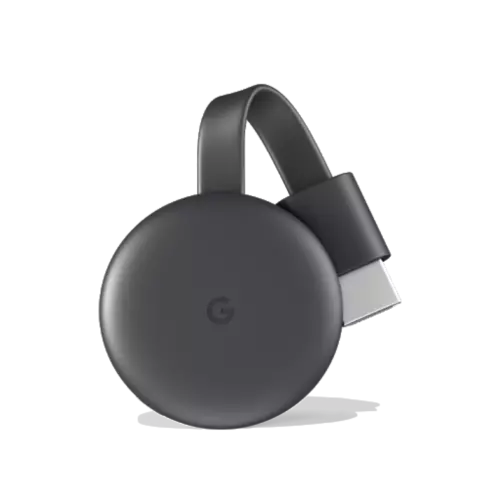
Google Chromecast
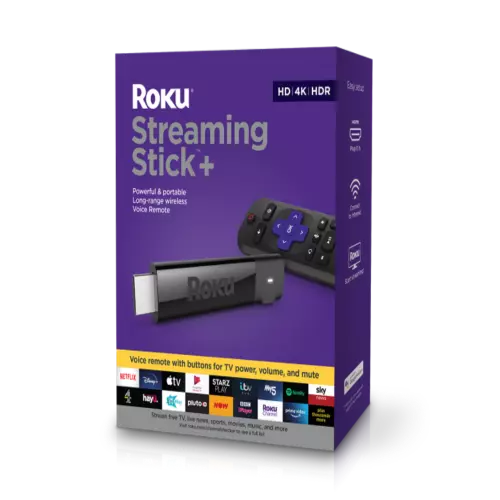
Roku
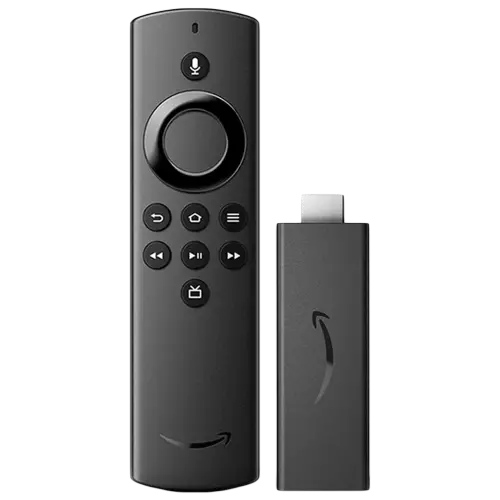
Amazon FireStick
Quick Fixes to Try First (Solve Most Issues Fast)
Before you go into deeper fixes, try these quick steps. They solve most BET Plus Not Working problems in just a few minutes. You don’t need any technical knowledge here. Just follow them one by one.
1. Check Your Internet Connection
Start with the basics. BET Plus needs a stable internet connection to work smoothly. If your Wi-Fi is slow or unstable, videos may buffer, fail to load, or show a black screen.
Try opening another app like YouTube or Netflix. If those apps are also slow, the issue is likely your internet.
You can fix this by:
- Switching from Wi-Fi to mobile data or vice versa
- Restarting your router
- Moving closer to your Wi-Fi source
2. Restart Your Device
This sounds simple, but it works more often than you’d expect. A quick restart clears small glitches that may stop apps from working properly.
Turn your device off, wait for about 30 seconds, and turn it back on. Then open BET Plus again and check if the issue is gone.
3. Update the BET Plus App
Running an outdated app can cause login errors, crashes, or playback issues. Developers often fix bugs through updates.
Go to the Google Play Store or Apple App Store and check if there is an update available for BET Plus. Install it and try again.
4. Check If BET Plus Servers Are Down
Sometimes, the problem is not on your side. The platform itself might be facing downtime.
You can check online forums or platforms like Twitter to see if others are reporting the same issue. If many users are facing it, the best option is to wait until the service is restored.
Also Read: How to Link Your TV Provider to BET or BET Plus
How to Fix BET Plus Activation Issues
If your BET Plus Not Working problem shows up during activation, it can feel confusing. You enter the code, follow the steps, and still nothing happens. The good thing is that activation issues are usually easy to fix once you know what’s causing them.
Let’s break it down step by step.
Why Activation Fails
Activation usually fails for a few simple reasons. The code may have expired, the wrong account is being used, or the device is not syncing properly.
Activation codes are time-sensitive. If you wait too long, they stop working. Also, if you sign in with a different email than the one linked to your subscription, the activation will fail.
Fix Problems with Activation Codes
Start by generating a new activation code on your TV or streaming device. Do not reuse old code.
Then, go to the official activation page and enter the new code carefully. Make sure there are no typing mistakes. Even a small error can stop the process.
If the code still does not work, refresh the page and try again with a newly generated code.
Re-link Your Account Correctly
Sometimes, your device is linked to the wrong account. This can happen if you have multiple emails or signed in through another platform earlier.
Log out of BET Plus on your device and sign in again using the correct account. After that, restart the activation process from scratch.
This helps your device sync properly with your subscription.
Fix Errors on the Activation Page
If the activation page is not loading or showing errors, the issue may be with your browser.
Try these steps:
- Open the page in a different browser, like Google Chrome or Safari
- Clear your browser cache and cookies
- Disable any VPN you are using
If the page still does not load, wait a few minutes and try again. Sometimes, it is just a temporary server issue.
Also Read: How to Activate BET & BET Plus
How to Fix BET Plus Login Issues
If you’re stuck at the login screen, the BET Plus Not Working issue can feel even more frustrating. You enter your details, but nothing happens, or worse, you get stuck in a loop. The good part is that login problems are usually easy to fix once you check a few key things.
Let’s go step by step.
Incorrect Login Details
This is the most common reason. Even a small typo in your email or password can stop you from signing in.
Make sure:
- Caps Lock is turned off
- You are using the correct email linked to your subscription
- There are no extra spaces before or after your email
If you’re unsure, try logging in on a browser first. This helps confirm whether your account details are correct.
Password Reset Not Working
If the reset link is not working, it may have expired or gone to the wrong email.
Request a new password reset and open it immediately. Also, check your spam or junk folder if you do not see the email in your inbox.
If the link opens but does not work, try a different browser like Google Chrome or Microsoft Edge.
Account Locked or Login Loop
Sometimes, after multiple failed attempts, your account may get temporarily locked. In other cases, the app may keep logging you out again and again.
To fix this:
- Wait for a few minutes before trying again
- Restart your device
- Log in through a browser and then return to the app
This helps reset the session and stops the loop.
Issues with Apple, Google, or Other Sign-ins
If you signed up using Apple or Google, logging in with email and password may not work.
Use the same method you used while signing up. For example, if you used Google or Apple sign-in, stick to that option.
Also, make sure your Google or Apple account is active on your device.
Login issues can look serious, but they are often small account or session problems. Once fixed, everything goes back to normal quickly.
Also Read: How to Install and Watch BET on Roku – Couch Potato Guide
How to Fix BET Plus Playback Issues
If videos are not loading, buffering constantly, or showing a black screen, your BET Plus Not Working issue is likely related to playback. This is one of the most common problems, and in most cases, it can be fixed quickly with a few simple steps.
Let’s go through the main fixes.
Videos Not Loading or Buffering
Buffering usually means your internet speed is not stable enough for streaming.
Try this:
- Switch to a stronger Wi-Fi network or mobile data
- Pause the video for a minute to let it load
- Close other apps that may be using your internet
You can also test your speed using tools like Speedtest by Ookla. If your speed is low, the video may struggle to play smoothly.
Black Screen or App Freezing
If you hear audio but see a black screen, or the app freezes mid-play, it is usually a temporary glitch.
Here’s what you can do:
- Close and reopen the BET Plus app
- Restart your device
- Try playing a different show or episode
If the issue happens with only one title, it may be a content-specific problem.
Audio Not Working Properly
Sometimes the video plays, but there is no sound, or the audio cuts out.
To fix this:
- Check your device volume and mute settings
- Disconnect and reconnect Bluetooth devices like headphones or speakers
- Restart the app
Also, try playing audio in another app like Spotify to confirm your device audio is working fine.
Poor Video Quality
If your video looks blurry or keeps dropping in quality, your connection may not be stable.
You can improve this by:
- Moving closer to your router
- Reducing the number of devices connected to your network
- Restarting your router
Some apps also adjust quality automatically based on your speed, so a stable connection helps maintain better clarity.
Playback issues can interrupt your experience, but they are usually tied to internet or small app glitches. Once fixed, streaming should feel smooth again.
Also Read: How to Cancel or Change Your BET Plus Plan | Easy Guide
BET Plus Not Working on Your Device? Try These Fixes
Sometimes, the issue is not with your account or the internet. It is the device itself. The way apps behave can be different on TVs, phones, and browsers. If your BET Plus Not Working issue is happening on a specific device, these fixes will help.
Let’s break it down by device type.
Smart TVs (Samsung, LG, Android TV)
Smart TVs are great for streaming, but apps can lag or fail if not updated properly.
Try this:
- Restart your TV completely, not just sleep mode
- Check for system updates in your TV settings
- Update the BET Plus app if available
If the app still does not work, uninstall it and install it again. This clears hidden bugs that may be causing the issue.
Fire TV and Roku Devices
Streaming devices like Fire TV and Roku can sometimes lose sync with apps.
Here’s what helps:
- Restart your device from settings
- Clear the cache if the option is available
- Remove the BET Plus app and reinstall it
Also, make sure your device software is updated. Outdated firmware can cause apps to crash or not open at all.
iPhone and Android Phones
On mobile devices, issues are often related to app data or permissions.
Try these steps:
- Force close the app and open it again
- Update the app from the Google Play Store or Apple App Store
- Clear app cache on Android devices
If nothing works, reinstalling the app usually fixes most problems.
Web Browsers (Chrome, Safari, Edge)
If you are watching BET Plus on a browser, small settings can cause issues.
You can fix this by:
- Clearing cache and cookies
- Disabling browser extensions
- Try a different browser, like Google Chrome or Safari
Also, make sure your browser is updated to the latest version.
Device-specific issues are common, but they are also easy to fix once you know where to look. A quick reset or update usually gets things back on track.
Also Read: Where to Watch BET Awards Live?
Fix the BET Plus App Crashing or Freezing
If the app keeps closing on its own or gets stuck on one screen, your BET Plus Not Working issue is likely due to app performance problems. This can happen on any device, especially if the app data is overloaded or the system is struggling to keep up.
Let’s fix it step by step.
Clear Cache and App Data
Over time, apps store temporary files to run faster. But when this data builds up, it can actually cause crashes or freezing.
On Android devices, go to app settings and clear cache. If the problem continues, you can also clear app data. This resets the app and removes any corrupted files.
On iPhones, there is no direct cache option, so reinstalling the app is the easiest way to refresh it.
Reinstall the App
Sometimes, the app files themselves may be broken or outdated.
Uninstall BET Plus from your device and install it again from the Google Play Store or Apple App Store.
This gives you a fresh version of the app without any hidden issues.
Check Storage and Device Performance
If your device storage is almost full, apps may crash more often. The system needs free space to run smoothly.
Try this:
- Delete unused apps or files
- Close background apps running at the same time
- Restart your device after clearing space
If your device is older, it may also struggle with newer app updates. Keeping things light helps improve performance.
Crashing and freezing issues usually come from small performance problems. Once you clear them out, the app should run much more smoothly.
Also Read: How to Reactivate Your BET Plus Subscription
Fix Subscription and Payment Issues
If everything looks fine, but you still cannot watch content, your BET Plus Not Working issue may be linked to your subscription or payment. This can be confusing because the app opens normally, but access is restricted.
Let’s go through the common fixes.
Subscription Active but Not Working
Sometimes your subscription is active, but the app does not recognize it.
First, make sure you are logged in with the same account you used to subscribe. Many users accidentally switch emails and lose access.
You can also try:
- Logging out and signing in again
- Restarting the app or device
- Checking your subscription status on the official website
This helps sync your account with your device again.
Payment Failed or Not Updated
If your payment did not go through, your access may be paused.
Check your billing method and make sure:
- Your card or payment method is valid
- There are no expired details
- You have enough balance
Update your payment details and try again. Once the payment is successful, access usually returns immediately.
Issues with Third-Party Billing
If you subscribed through platforms like Amazon, Apple, or Roku, your billing is handled by them, not BET Plus directly.
In this case:
- Check your subscription status on Amazon, Apple, or your Roku account
- Make sure the subscription is active there
- Sign out and back into BET Plus after confirming
Sometimes, it takes a few minutes for the system to sync across platforms.
Subscription issues can feel tricky, but they are usually just account sync or payment problems. Once corrected, your access should be restored without delay.
Also Read: BET Plus Plans & Pricing: Free Trial, Cost, How to Get & More
Is BET Plus Down? How to Check Server Status
Sometimes, the issue is not on your side at all. If you have tried everything and still face a BET Plus Not Working problem, the platform itself might be down. This can happen during maintenance, sudden traffic spikes, or technical glitches.
Here is how you can check it quickly.
Check Online Status Websites
Websites like Downdetector show real-time reports from users. If many people are reporting issues at the same time, it is likely a server problem.
Look for spikes in reports or comments mentioning login errors, playback issues, or app crashes.
Check Social Media for Updates
Platforms like Twitter are often the fastest place to spot outages. Users usually post about problems within minutes.
Search for “BET Plus not working” and see if others are facing the same issue. You may also find updates or responses from the official team.
Try Opening BET Plus on Another Device
If the service works on one device but not another, the issue is likely device-specific. But if it fails everywhere, it could be a server issue.
This quick check helps you avoid wasting time on fixes that will not work during downtime.
What to Do If BET Plus Is Down
If the servers are down, there is not much you can do from your side. The best option is to wait until the issue is resolved.
You can:
- Try again after some time
- Keep an eye on status updates
- Avoid repeated login or activation attempts
Server issues are temporary, even though they can be frustrating. Once the platform is back, everything usually starts working again without any extra steps.
Also Read: [Review] BET Plus: Celebrities, Music, Originals, & More
Still Not Working? How to Contact BET Plus Support
If you have tried all the fixes and still face a BET Plus Not Working issue, it is time to reach out to support. Sometimes, the problem is tied to your account, billing, or something that only the support team can fix from their side.
The good part is that you can usually get help if you share the right details.
Use the Official Help Center
Start by visiting the official BET Plus help section. Most common issues like login errors, billing problems, and playback glitches are already covered there.
Look for solutions based on your exact problem before raising a request. This can save you time if your issue has a quick fix.
Submit a Support Request
If you cannot find a solution, submit a support ticket.
When you contact support, make sure to include:
- Your account email
- The device you are using
- A clear description of the issue
- Any error message you see
The more details you provide, the faster they can help you.
Check Response Time
Support replies may take some time, especially during peak hours. Keep an eye on your email, including your spam folder, so you do not miss their response.
While waiting, avoid making too many repeated attempts, like logging in again and again. This can sometimes create more issues.
Try Social Media Support
You can also reach out through platforms like Twitter. Many users get quicker responses there, especially for ongoing issues.
Just send a short message explaining your problem and wait for a reply.
Support should be your last step, but it is helpful when nothing else works. Once your issue is reviewed, you should be able to get back to streaming without trouble.

ExpressVPN Review | Why is this the Best VPN Service?
Is NordVPN Any Good? This Review is All You Need
Wrapping up: BET Plus Should Now Work
Running into a BET Plus Not Working issue can be frustrating, especially when you just want to relax and watch something. But as you’ve seen, most problems come down to a few simple things like internet issues, outdated apps, or small glitches in your device.
The key is not to overthink it. Start with the quick fixes, then move step by step through activation, login, or playback solutions based on your issue. In most cases, one of these steps will get things back on track within minutes.
If nothing works, checking server status or reaching out to support is always a safe next step. You are not alone in this, and these issues are usually temporary.
Take a few minutes to go through the fixes, and you should be back to streaming without any hassle.
If you like what you read, give us a quick share on your social media platform and give us all the love and support. You can also connect with us on our Telegram Channel, Facebook Page, Reddit Community, and X to never miss out on tech updates.
Frequently Asked Questions [FAQs]
Even with a strong connection, the app may fail due to outdated versions, cache issues, or server problems. Try updating the app or restarting your device.
This usually happens due to session errors or account sync issues. Logging out, restarting your device, and signing in again often fixes it.
Activation codes expire quickly. Generate a new code and enter it right away to avoid errors.
Buffering is often caused by an unstable internet or too many devices using the same network. Switching networks or restarting your router can help.
Check your email and password carefully. If needed, reset your password and try again using the correct login method.
This is usually a temporary glitch. Restart the app or your device and try playing the video again.
You may be logged into a different account. Sign out and log back in with the correct email linked to your subscription.
Yes, but performance may vary. Keeping your device and app updated helps avoid most issues.
Before You Leave
Get Our Prime Content Delivered to your Inbox for Free!! Join the Ever-Growing Community… Right Now.
Give this article a quick share,